Custom PLM User Experiences
Unleash the power of Fusion 360 Manage by utilizing its REST API to provide custom built frontends based on Autodesk Platform Services. All solutions manage data in PLM only. All business rules of PLM as well as access permissions still apply.
Version of October 2023
Connected to
This version has been optimized for the tenant template released in 2023 using a single Items workspace. While the solutions can be used with any tenant thanks to their configuration capabilities, using this new tenant reduces configuration efforts. In addition, most of the solutions can be tested with the given demo datasets immediately.
These solutions are provided by Autodesk Technical Sales without warranty and support. There should be no assumption that updates, patches, bug fixes and / or new features will be delivered to you. There will also be no support available either through Autodesk Support channels or by the Autodesk Pre-sales Technical Team. Please feel free to take the source code and ideas from this tool to develop your own production ready tool and products. Change and reuse the source code as you like.
Server Status MonitorFeatures
- The dashboard makes use of the reports defined in PLM. Make sure that you have valid reports defined in the reports panel.
- The first two out of these reports will get displayed in the dashboard automatically.
- The button Select Reports enables users to select a different set of reports for the dashboard. Note: This given selection will not be saved.
- Users can click on the rows in table based reports to navigate to the given record in PLM.
Limitations
This solution only supports non-stacked column charts and pie charts. All other charts require further developoments.
Configure Startup Reports
The dashboard will automatically load a defined set of reports at startup before users can select their preferred reports using the Select Reports button. These startup reports can be defined in the settings.jsfile.
'reports' : {'startupReportNames' : ['Audits by Workflow State', 'CR approval status', 'DR: Rework Required', 'EX: Change Requests'],'startupReportNames' : 5}
The list of startup repports can be defined by their names using the setting startupReportNames. In addition, startupReportNames can be set to define a minimum number of reports to be loaded if none of the report names match for the current user. In this case, when set to 5, the system will display the first five reports (in alphabetical order) if none of the report names were found.
Access the Dashboard
You can access the reports dashboard using the /reports endpoint:
Reports Dashboard Change Log
| 7. July 2023 | New Feature | Reports can be removed from the dashboard with a new X icon |
| 7. July 2023 | New Feature | Automatic pagination has been enabled for table reports to improve usability |
Prerequisites
Your user must have admin privileges in order to have access to the system Log. Please note that the dashboard will retrieve the system log information in small packages. This process takes some time. There is a progress inidicator in top right corner to inform you about the data retrieval progress.
Configuration Settings
To make this solution compatible with large environments, it will take into account a maximumg of 500.000 log entries. This number can be changed in file settings.js if needed. Find the variable exports.config and adjust the value of maxLogEntries shown below.
'insights' : {'maxLogEntries' : 500000,'usersExcluded' : ['Administrator', 'Import User', 'Job User', 'Integration User']}
You can also exclude user accounts from the report by providing their display names in parameter usersExcluded.
Access the Dashboard
You can access the dashboard with the /insights endpoint, just click this link:
Tenant Insights Change Log
| 7. July 2023 | Enhancement | Improved styling with tabs at bottom |
| Enhancement | User's image is shown in top right corner for consistency with other apps | |
| Bugfix | User 'Tenant Admin' now is excluded from reports | |
| New Feature | An error messags is shown if the user does not have admin privileges |
Features
Access data of relevance easily by having Workspaces Views, your Bookmarks, Recent Items and entries of your My Outstanding Work list combined in a single view. In these views, benefit from various additional features:
- Item style instead of table style
- Filter using type ahead
- Mass Edit Item Details
- Compare and highlight
- Hide / Unhide records in the views
- Perform Workflow Actions on multiple records
- Clone items from the overviews
- Archive multiple records in one action
- Navigate to workspace of interest
- Bookmarks view will be selected automatically if the user bookmarks contain items of the selected workspace
Limitations
You cannot modify fields of type Image and Multiple Picklists in this utility. Also, there are no options when cloning records.
Access the Dashboard
You can access the Workspace Navigator using the /navigator endpoint. You can also access the Workspace Navigator also for a defined workspace directly by passing the given Workspace ID wihtin the URL. Changing the workspace then is still possible:
Workspace Navigator Change Log
| 7. July 2023 | Enhancement | Read-only fields are shown as read-only now |
| Enhancement | Button 'Toggle Panel' has been replaced with dedicated close buttons to improve usability |
Prerequisites
This solution does not require any changes to your tenant, all information is retrieved dynamically. However, in order to make the solution accessible on your mobile device, your server must be available from the Internet. For security reasons, it is highly recommended to https connections instead of http.
You can use this mobile client on any mobile platform (Android and Apple) as it does not require installation of an app. Instead, this client is provided as responsive web site that adapts to the screen size automatically.
Features
Users benefit from PLM features on a mobile device:
- Browse Workspaces and given views
- Access Bookmarks and Recently Viewed items
- Create & Search records
- Manage Item Details
- View 3D data
- Upload & download attachments
- Browse the flat BOM of items
- View relationships of a record
- Track related change processes
- Perform Workflow Actions
- Archive & Unarchive items
- Share links to items using mail
- Review the Change Log
The Mobile Client also can be used to navigate to a given record directly. This enables to scan a QR code to be directed to the matching record in PLM. See instructions for accesing the client below for details.
While a lot of features are supported, the client also has limitations. It does not provide access to the following tabs:
- Workflow
- Grid
- Project
Mobile Device Simulation
If you want to test this solutions, but cannot access the server online from your phone, your browser can be of help. Open the Mobile Client using the instructions shown below. Once opened, right click the page and select Inspect in Chrome. This will open the developer tools in which you can toggle the device for testing. Just select your preferred mobile device and reload the page. This enables to render the page like on a mobile device.
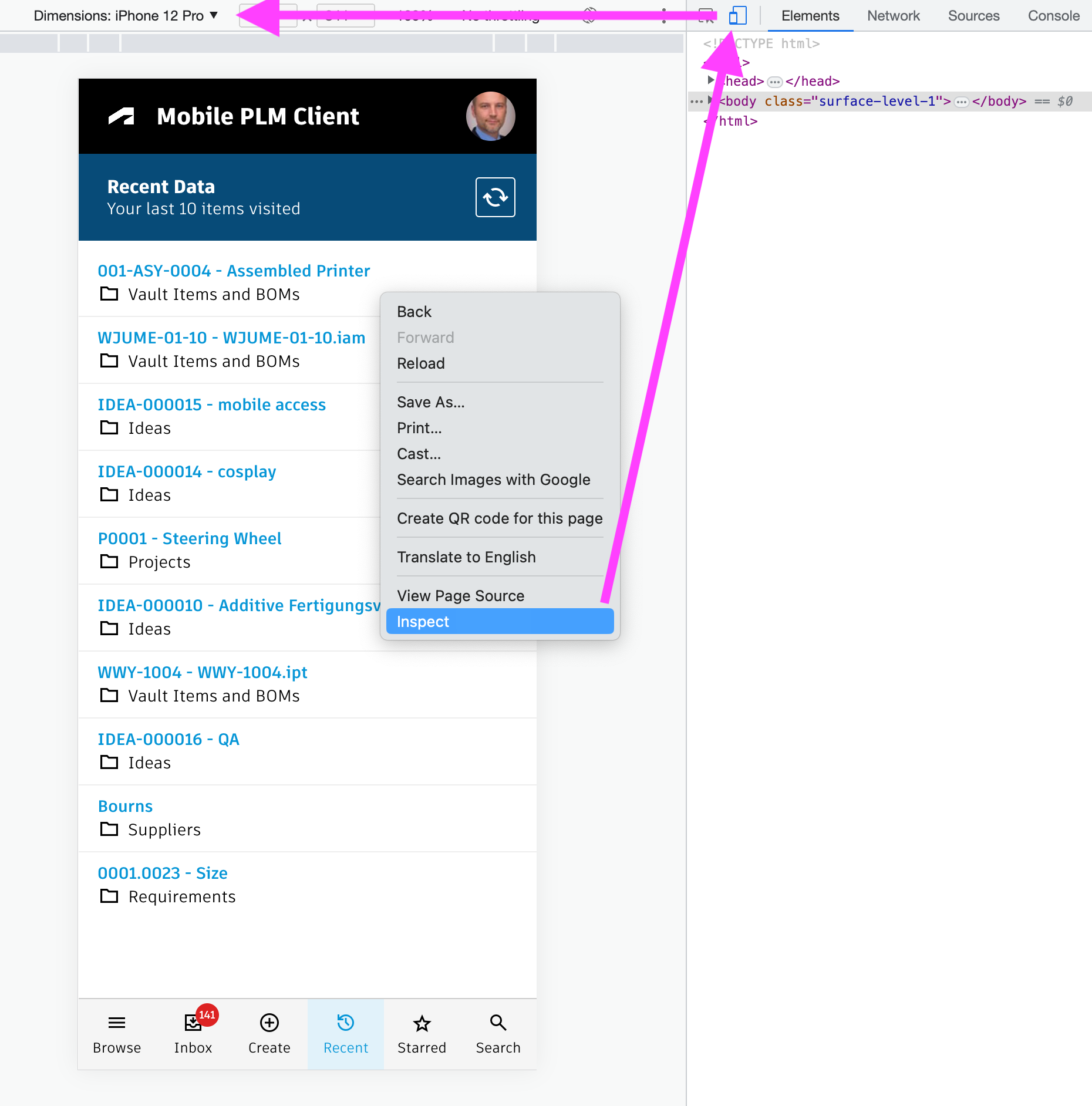
Access the Mobile Client
You can access the client with the /client endpoint, just click the first button. In order to navigate to a defined record, you can also pass the Workspace ID and DMS ID of a record as parameters. See the second button example which opens a demo dataset item automatically.
Mobile Client Change Log
| 26. October 2023 | Enhancement | Search performance has been improved and styling has been updated for better ease of use |
| 7. July 2023 | - | No changes in this release |
Prerequisites
This app works best with the Items workspace, but can also be used with the former Vault Items and BOMs and Items and BOMs workspaces. However, it is recommended to be used with a workspace where the items have viewable files (dwf) attached.
Features
- Navigate and visualize a BOM
- Filter BOM and 3D view by text and dynamic KPIs
- Apply colours to BOM and viewer to visualise KPIs
- Toggle BOM structure and flat table mode
- Access and download attachments of a selected item
- Review & edit details of selected records
- Review change processes related to a selected item
- Perform markups and initate new Problem Reports for given items
- Manage master data of single records
- Manage master data of multiple records in flat BOM view
Configuration Settings
Users can create new Problem Reports for the selected items and also reveal existing processes. As your tenant might be configured differently, you can define the Workspace ID of the matching Problem Reports workspace in your tenant. Open file settings.js and adjust the value of the variable explorer.wsIdProblemReports if needed. This parameter is set to 82 per default to match the default Problem Reports workspace of standard tenants. When new Problem Report get created, the viewer's image (including markups) will be uploaded to the new Problem Report as well. The parameter fieldIdProblemReportImage defines the image field's ID to be used for storing the image. Per default, this is set to IMAGE_1 , matching the standard tenant configuration.
exports.config = {'explorer' : {'bomViewName' : 'Details','fieldIdProblemReportImage' : 'IMAGE_1','wsIdProblemReports' : 82,'wsIdSupplierPackages' : 147,'kpis' : [..],}}
This explorer also can be used to identify items to be shared with suppliers (i.e. new or changed components). Therefore, one can provide the Workspace ID of Supplier Packages in setting wsIdSupplierPackages . If this setting is provided, users can click the given icon to create a new package for selected BOM components easily
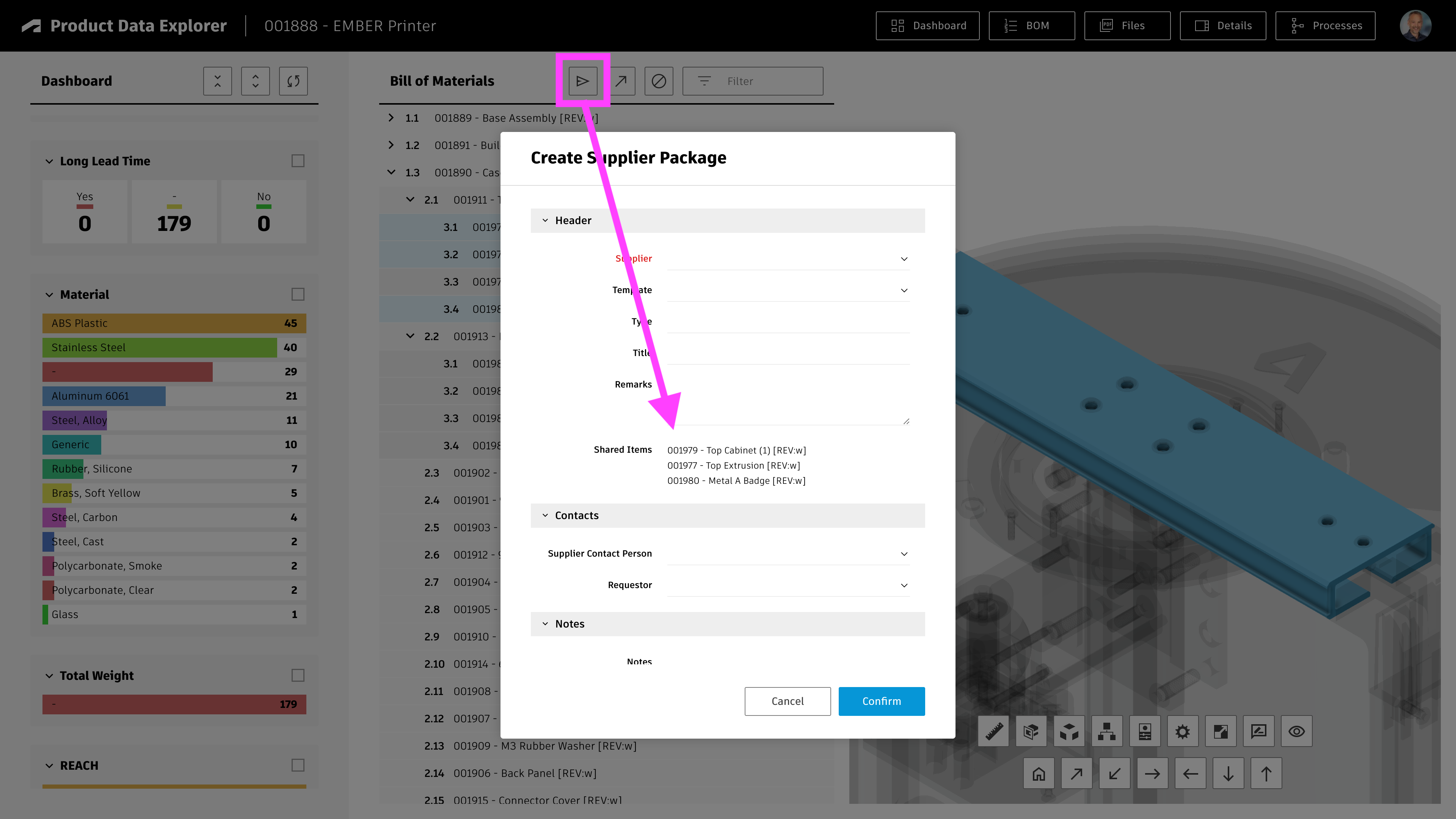
The 'kpis' parameter of config.explorer shown above defines the KPIs being displayed in the explorer's dashboard to the left. You may change them, but please create a backup copy of the original settings.js before. Keep in mind that all KPIs of relevance must be included in the given BOM view as well (see next step): if you want to indicate the value of field Material for example, this field must be included in the new BOM view as well.
Certain KPIs are preconfigured to match the standard Items workspace. For example, the dasboard will display counters to reveal items undergoing a change, and also display bars to indicate the PDM category:
{'id' : 'change','title' : 'Pending Change','fieldId' : 'WORKING_CHANGE_ORDER','urn' : '','type' : 'non-empty','style' : 'counters','data' : [{ 'value' : 'Yes', 'count' : 0, 'color' : colors.list[0], 'vector' : vectors.red },{ 'value' : 'No' , 'count' : 0, 'color' : colors.list[4], 'vector' : vectors.green } ]},{'id' : 'pdm-category','title' : 'PDM Category','fieldId' : 'PDM_CATEGORY','urn' : '','type' : 'value','style' : 'bars','data' : []}
Each KPI is configured with the same parameters:
| id | Unique identifier for each KPI |
| title | The title being displayed for the given KPI in the dashboard |
| fieldId | ID of the given item details field to retrieve the given value - or the id of the given BOM column |
| urn | Is set during runtime, leave it blank |
| type | Defines if the KPI should be based on the given value (value) or if it should just indiate if the given field is not empty (non-empty) |
| style | Select if the KPI should be presented as counters or colored bars with value. No matter which style you choose, users will be able to filter using the given KPI anyway. |
| data | Leave this array blank for a dynamic range of values. If you want to predefine the range of interest and given colors, define the given datapoints in this array as shown for the Pending Changes. |
Configure Workspace BOM View
This application requires a BOM view that contains all fields required to determine the KPIs for the dashboard shown on the left hand side of the application. It is recommended to create a new BOM view named Details for workspace Items if it does not exist yet - with all the columns shown below. If you omit some of these columns (as they might not exist in your tenant), the given KPIs will be hidden automatically and the dashboard will still work. If you want to reuse an existing BOM view instead, you can change the view's name in file settings.js . Locate the parameter explorer.bomViewName (see previous chapter) and change it accordingly (restart the application server afterwards).
List of recommended columns to match the standard KPIs:
- Descriptor
- Number
- Lifecycle (System Field)
- Change Pending
- Type
- Class Name
- PDM Category
- PDM Folder
- Responsible Designer
- Material
- REACH
- Spare / Wear Part
- Make or Buy
- Lead Time
- Long Lead Time
- Vendor
- Country
- Has Pending Packages
- Total Cost (BOM Field)
- Total Weight (BOM Field)
Extend Workspace Item Details
If the field DMS_ID does not exist yet in your workspace, add it as Single Line Text (length 20, not visible) in tab Item Details. Let this field be set upon item creation using the following script code:
item.DMS_ID = dmsID;
In addition, add a new computed field Actions to Item Details that renders a button to open the explorer for the current record. Use the formula shown below. In this formula, adjust the workspace ID to match your environment if needed (57 matches the standard Items workspace).
If an Actions field is already present in your Items workspace, add the given formula to your existing Actions field. Note that the latest standard tenant renders multiple buttons in a standard Actions field which are all aligned thanks to a wrapping table. If this table is present in your tenant's Actions field, insert the formula accordingly to the other buttons.
'<a style="border: 1px solid #bec8d2;border-radius:3px;color: #0a131c;font-weight:600;line-height:32px;padding:4px 20px;text-align:center;text-decoration:none !important;white-space:nowrap;" target="_blank" href =" explorer?wsId=57&dmsId='||DMS_ID||'">Explorer</a>'
Make sure that Items can be connected to Problem Reports as affected items. The retrieval of related PRs and also creation of new PRs will fail otherwise.
Access the Explorer
If your tenant contains the default demo datasets and once you have the BOM view configured as described above, you can open the explorer for validation purposes using the link below:
Product Data Explorer Change Log
| 15. September 2023 | Enhancement | Added further KPIs to standard configuration |
| 3. August 2023 | Bugfix | Improved behavior of markup toolbar at lower resolutions |
| Bugfix | Width of markups and font size of markup text can now be set properly | |
| 7. July 2023 | New Feature | When switching to the flat BOM view, users can modify properties for multiple records (given the fields in the defined BOM are editable) |
| Enhancement | Enhanced KPI definition to match standard properties and BOM view of new default tenant |
Features
Users can track progression of processes, update existing processes and create new processes with ease using this dashboard. The dashboard provides access to a single workspace only to reduce complexity.
- Create new processes by providing basic data only
- Review history of selected processes
- Update status of a given process
- Download and upload process attachments
- Use 3D markups to document process
- Access bookmarked and recent processes
- Track proces progression in Kanban
- Review process updates in a chart
Configuration Settings
This dashboard can be used with any workspace but requires the matching configuration in file settings.js. This application is preconfigured for the workspaces Problem Reports , Change Requests and Project Tasks of default tenants. Additional workspace configuration profiles can be added by copying one of the existing configurations shown below.
'dashboard' : [{'title' : 'Problem Reporting Dashboard','wsId' : 82,'icon' : 'account_tree', // Use https://fonts.google.com/icons to search for icons'fieldIdSubtitle' : 'DESCRIPTION','fieldIdItem' : 'AFFECTED_ITEM','imageFieldsPrefix' : 'IMAGE_','workflowHistory' : {'showNextActions' : true,'excludedTransitions' : ['Close Report'],'finalStates' : ['Completed'] },'progress' : [{ 'label' : 'New', 'color' : colors.red, 'states' : ['Create'] },{ 'label' : 'Analysis', 'color' : colors.yellow, 'states' : ['Review', 'Technical Analysis'] },{ 'label' : 'Improvement', 'color' : colors.yellow, 'states' : ['CAPA in progress', 'Change Request in progress'] },{ 'label' : 'Completed', 'color' : colors.green, 'states' : ['Completed'] }]},{'title' : 'Change Requests Management','wsId' : 83,'icon' : 'rebase_edit','progress' : [{ 'label' : 'Planning', 'color' : '#000000', 'states' : ['Create'] },{ 'label' : 'Review', 'color' : colors.red, 'states' : ['Review & Impact Analysis', 'Peform Tasks', 'Change Control Board Review'] },{ 'label' : 'In Work', 'color' : colors.yellow, 'states' : ['Change Order in progress'] },{ 'label' : 'Completed', 'color' : colors.green, 'states' : ['Completed'] }]},{'title' : 'Project Actitivity Management','wsId' : 90,'icon' : 'account_tree','progress' : [{ 'label' : 'Planning', 'color' : colors.red, 'states' : ['Planning'] },{ 'label' : 'Assigned', 'color' : colors.red, 'states' : ['Assigned'] },{ 'label' : 'In Work', 'color' : colors.yellow, 'states' : ['In Work'] },{ 'label' : 'Review', 'color' : colors.green, 'states' : ['Review'] },{ 'label' : 'Completed', 'color' : colors.green, 'states' : ['Completed'] }]}]
Each profile requires the settings listed below.
| Setting | Example Value | Description |
|---|---|---|
| title | Problem Reporting Dashboard | Sets the application title shown in the main toolbar and tab name |
| wsId | 82 | ID of PLM workspace to use for the dashboard |
| icon | account_tree | Google font icon to use for the business process type (Use https://fonts.google.com/icons to search for icons) |
| fieldIdSubtitle | DESCRIPTION | Use this setting to select the field which will be used as subtitle for the tiles of business processes |
| fieldIdItem | AFFECTED_ITEM | Provide ID of the field that is used to connect the business process to a context item. If this optional field is defined and has a value, the given item's viewable will be shown to the right. |
| imageFieldsPrefix | IMAGE_ | Provide the prefix of Image fields to be used to store markups. If this setting is omitted, the markup feature will not be enabled when opening a selected process. |
| progress | [..] | Maps the business process workflow states to a linear sequene of steps to provide a better overview of the process progression. Each entry of this array must contain a label that will be used in the applcation, a color code to use for this state as well as the list of workflow 'states' that match to this step. |
| workflowHistory | {..} | These optional parameters can be used to suppress the workflow history display. It also enables to hide certain transitions and to define the final states (which will be shown with a different icon). |
Access the Dashboard
You can access the process dashboard with the /dashboard endpoint by providing the workspace profile to use. The value of parameter wsId has to match the wsId property value of the configuration profile to use. If you're connected to a default tenant of 2023 or later, you can use these links:
Process Dashboard Change Log
| 16. November 2023 | Extension | Added configuration profile for management of Non Conformances (incl. given button in documentation) |
| 6. October 2023 | Release | Initial release of this new app |
Prerequisites
Your tenant must have the Product Portfolio Management app installed (providing the workspaces Product Categories, Product Lines and Products). If your tenant has been created after April 2021, changes are high that it meets this requirement.
Features
Users can navigate the various level of the portfolio from Product Categories down to Products in an easy manner. Once a product is selected, users can retrieve a couple of information:
- The Marketing Text managed in section 'Product Catalog Definition' can be used to describe the product's features
- The images managed in section 'Product Catalog Images' can be opened
- If Classification section is added to the Products workspace, the given technical specification can be seen
- The product attachments can be downloaded
- If an engineering BOM item is linked to the product, the given BOM can be accessed and the given root item's viewable will be rendered
Adjust Workspace Products
If your tenant has been created in 2023 or later, the Products workspace should meet the following requirements already, so the following changes might not be required!
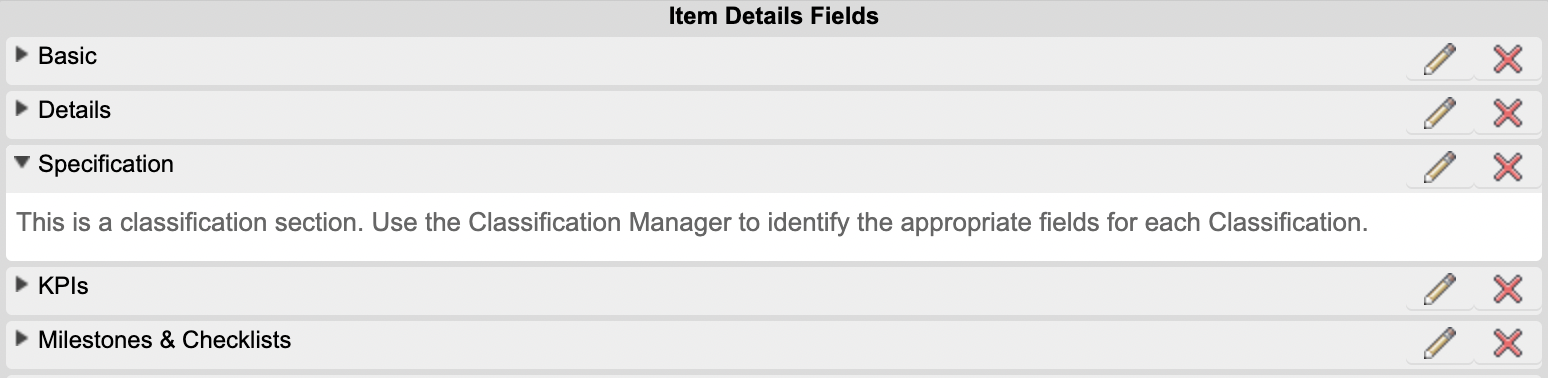
Add the Classification section to the Products workspace. This enables the management of technical specification based on the product type. The given information will be displayed in the catalog as well.
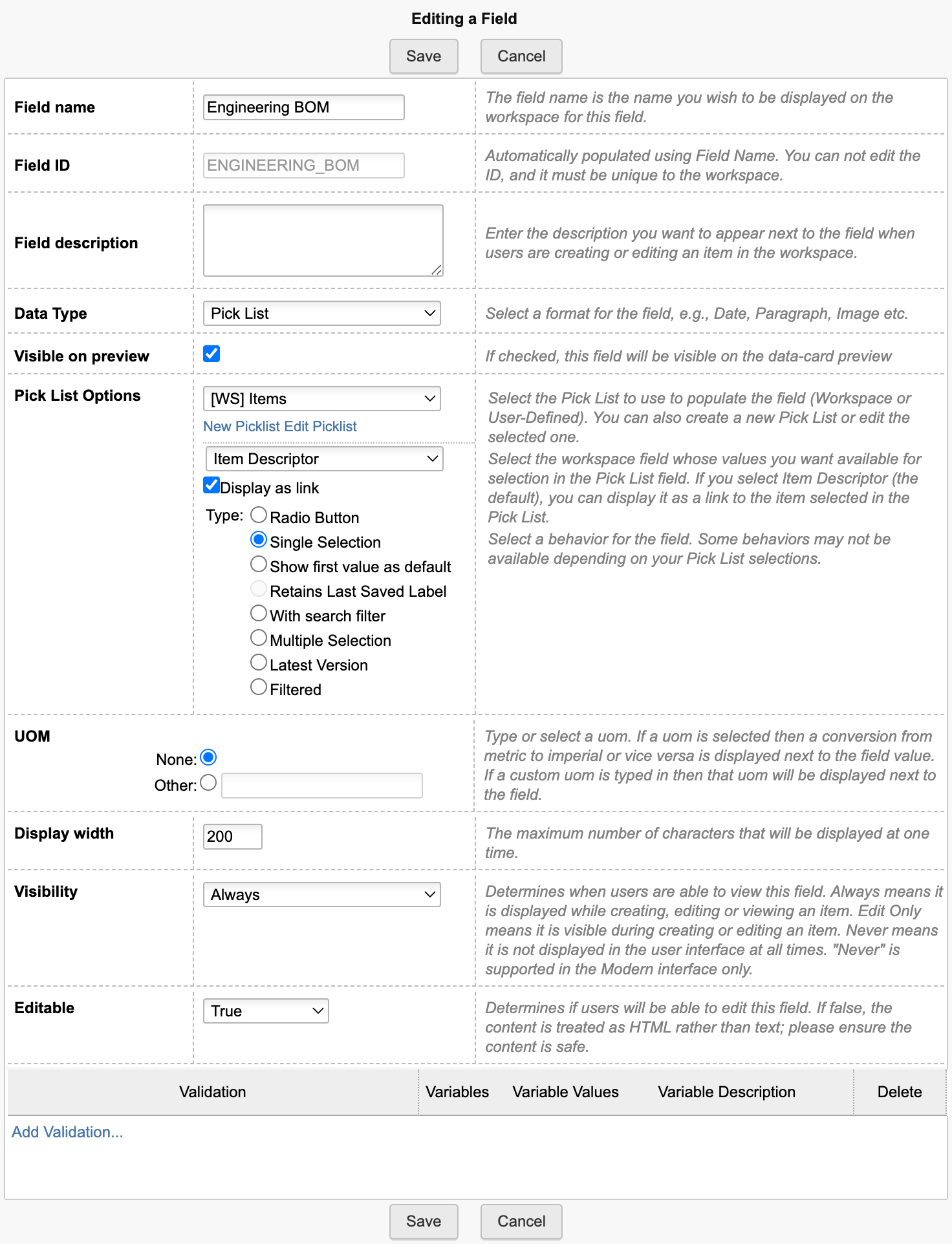
Set the field Engineering BOM to be a pick list, enabling references to the workspace Items (if existent, otherwise use Vault Items and BOMs). When using the app, only if an item is selected in this field, the product catalog will be able to render the 3D design of the product (as this will render the related item's dwf). Also, this given item will be used to retrieve the product Bill of Materials.
Configuration Settings
A couple of settings can be adjusted in file settings.js to match your environment if needed:
export.config = {'portfolio' : {'bomViewName' : 'Basic','hierarchy' : ['Product Categories', 'Product Lines', 'Products']}}
- In setting bomViewName, provide the name of a BOM view of your items workspace which contains the Number field as column. If this column is missing, the highlighting of BOM items in the viewer will fail. Make sure that this number's Field ID is also properly defined in viewer.fieldIdPartNumber within the settings file.
- If you renamed the standard workspaces of Product Portfolio Management, you can provide the new names in parameter hierarchy.
Access the Portfolio Catalog
You can access the extension with the /portfolio endpoint, just click this link:
Product Portfolio Catalog Change Log
| 26. September 2023 | Enhancement | Once a product got selected, a new button in the toolbar enables to open the related Services Portal for this product |
| 7. July 2023 | Enhancement | Better demo datasets in the default tenant to match this app (i.e. Marketing Names and Marketing Texts on Product Lines and Product Categories) |
Prerequisites
Your tenant must have the latest NPI solution installed (providing the workspaces Projects, Project Tasks, Teams and so on).
Features
The dashboard will provide insights in all projects that are accessible to the current user and display the following reports:
- The timeline of each projects by showing all Gates' target dates
- The Status Reports of each projects
- Current progress, project budget and progress of current phase of each project
- The planned effort for each project's phase
- Deviations of project end dates
Configuration Settings
Provide the ID of your Projects workspace in file settings.js. Adjust the value of the following variable which is set to 86 to match the default Projects workspace.
export.config = {'projects' : {'wsIdProjects' : '86',}}
Access the Dashboard
You can access the dashboard with the /projects endpoint, just click this link:
Projects Dashboard Change Log
| 21. November 2023 | Enhancement | Add configuration setting config.projects.query to settings file, enabling to filter of projects |
| 7. July 2023 | - | No changes in this release |
Prerequisites
You must have the latest Design Review app installed from the App Store. If your tenant is based on a template past April 2021, this given app is included already. To check if your tenant contains this latest app, please verify that the workspace Design Review Tasks is available in your tenant.
Configure Workspace Design Reviews
Use the Workspace Manager to perform the following changes to your workspace Design Reviews:
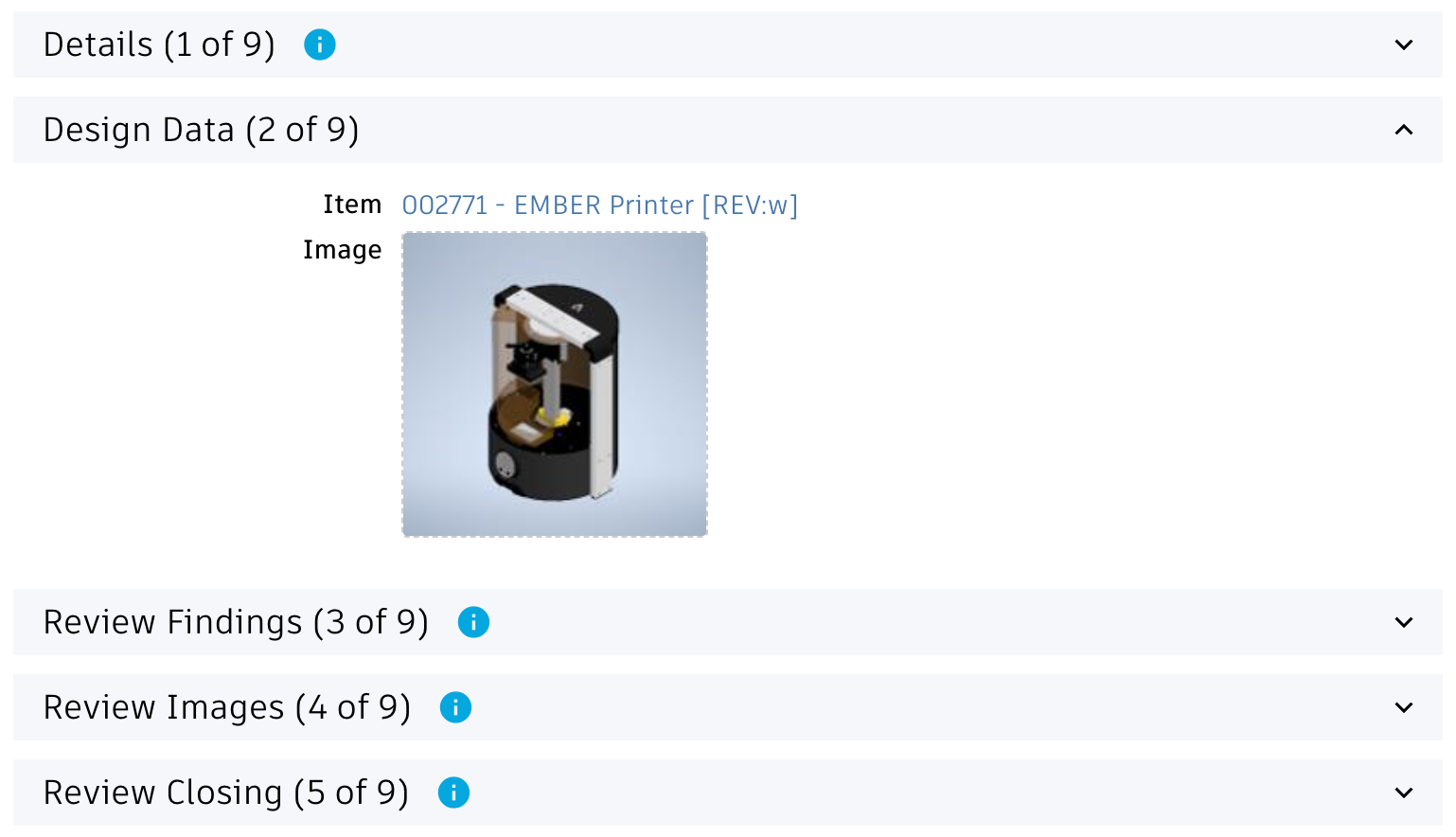
- Add section Design Data if it does not exist
- Add the field Item (id ITEM) to it if it does not exist yet. Make this a single selection picklist field referring to workspace Items (or Vault Items and BOMs if Items does not exist)
- Also, add the field Image (id IMAGE) as derived field of the previous field and let it derive the image field
Configure Workspace Design Review Tasks
Use the Workspace Manager to perform the following changes to your workspace Design Review Tasks:
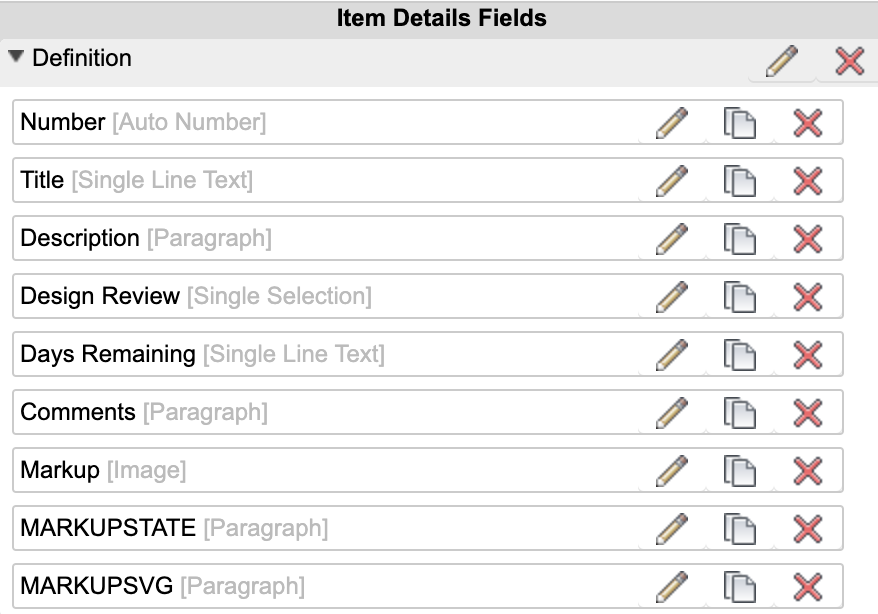
- Add an image field MARKUP to the first section
- Add two fields of type paragraph: MARKUPSTATE and MARKUPSVG. Set maximum length to 1.000.000 for both fields and set their visibility to Never. Set them to be editable anyway. Add these two fields to the first section of Item Details.
- The following fields must be editable at creation:
- TITLE
- DESCRIPTION
- DESIGN_REVIEW
- TARGET_COMPLETION_DATE
- Field ASSIGNEE must NOT be mandatory
- Disable Workflow Locking for all sections
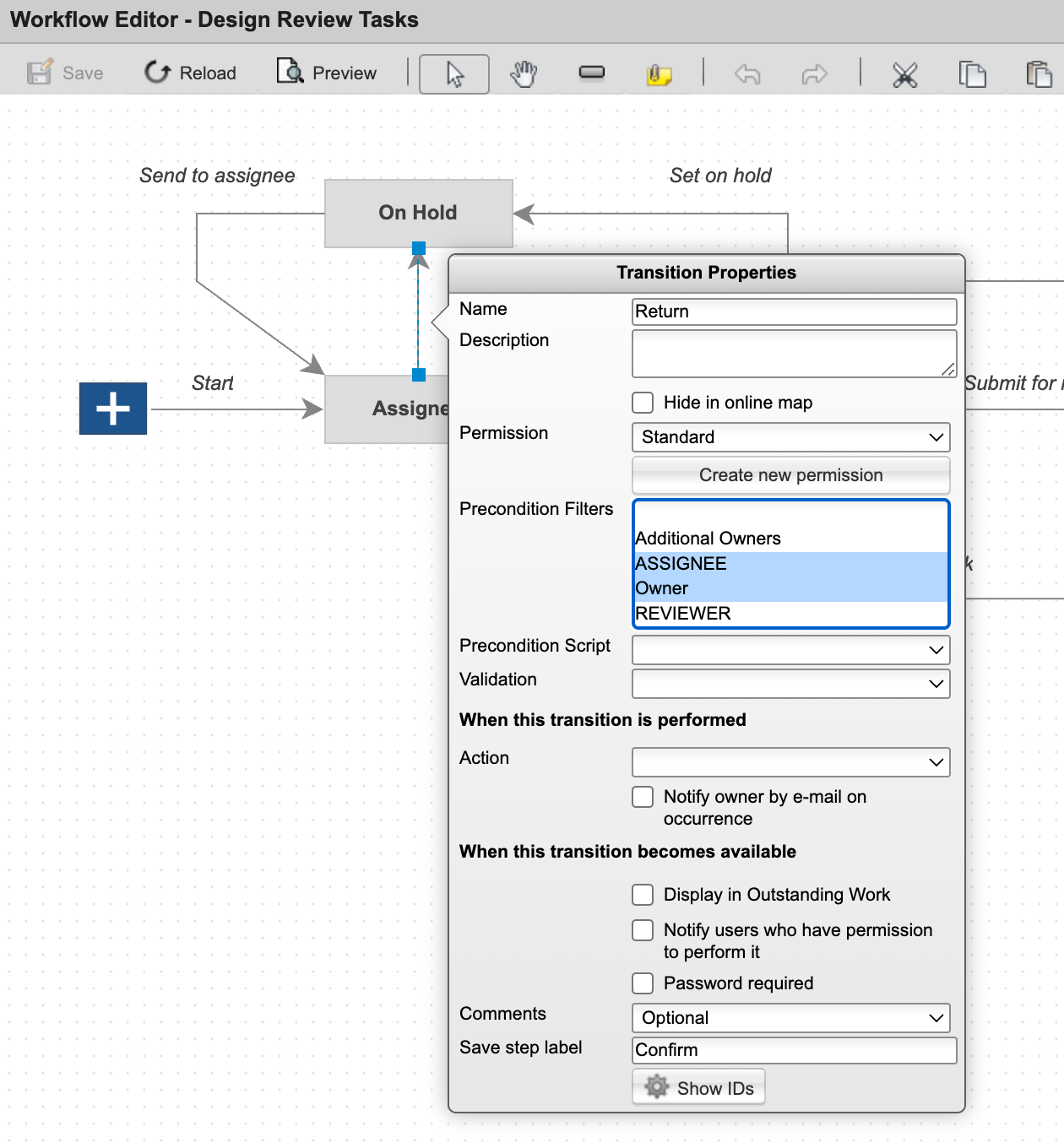
- Enable transition Return also for the Owner. If this permission is not granted, the creation of tasks will fail as the given user cannot upload the markup image after task creation.
Grant permission to Add Items in workspace Design Review Tasks for all the users which will use the Design Review Portal.
Script Changes
Let new Design Review Tasks be connected to the related Design Review by adding the following script to the initial workflow transition (from the Start Node) in workspaces Design Review Tasks:
if(item.DESIGN_REVIEW !== null) { item.DESIGN_REVIEW.project.addTask(item); }
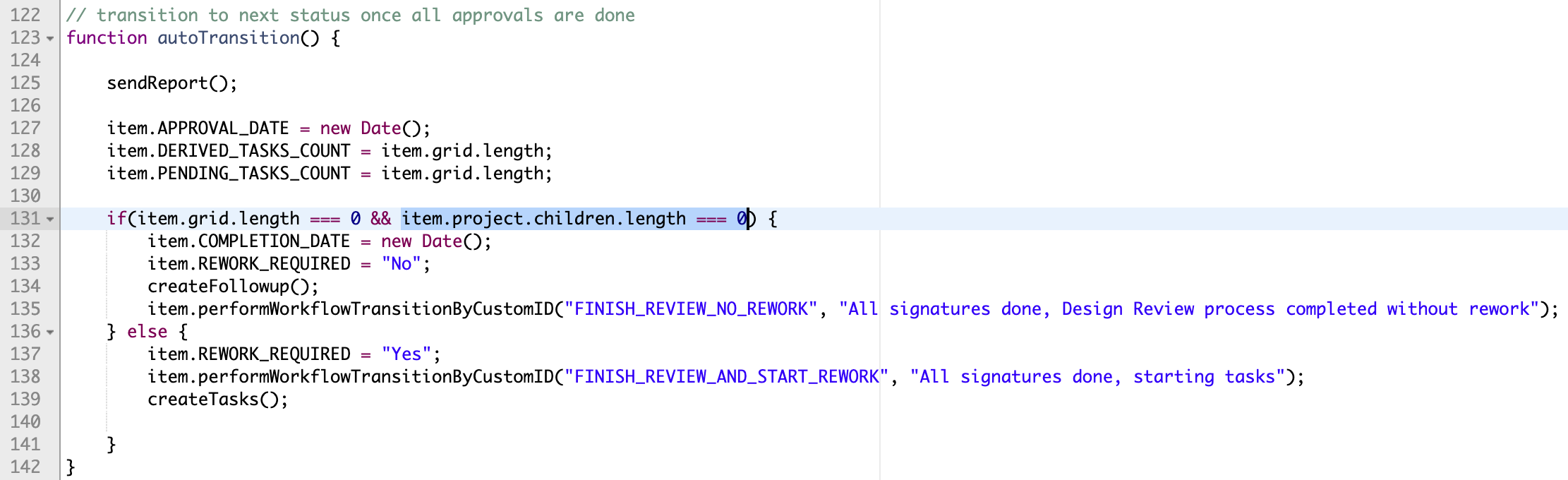
Adjust the script Design Reviews WF Actions by extending the if statement with the following condition as shown in the screenshot below:
item.project.children.length === 0
Configuration Settings
If the standard workspace Design Reviews or Design Review Tasks got changed, you may have to adjust some configuration settings within file settings.js. Locate the following section in this file to adjust the given properties if needed:
export.config = {'reviews' : {'fieldIdItem' : 'ITEM','fieldIdImage' : 'IMAGE','transitionId' : 'CLOSE_REVIEW','workspaces' : {'reviews' : {'id' : 76,'sections' : [ { 'name' : 'Review Findings' } ],'states' : [ 'Planning', 'Preparation', 'In Progress' ]},'tasks' : {'id' : '','sections' : [ { 'name' : 'Definition' }, { 'name' : 'Schedule' } ],'states' : [ 'Assigned', 'On Hold', 'In Work', 'Review', 'Complete' ]}},}}
Parameter transitionId defines the workflow action ID that can be used to close / finish a given design review. If the user has permission to perform this defined transition, the given button Finish will be displayed when opening a design review.
The workspaces parameter enables to align this solution with your workspace configuation:
- reviews.id is used to determine the workspace ID of Design Reviews
- reviews.sections is required to locate the section in Item Details of Design Reviews which contains the fields to store the findings (Issue, Deficiencies ...)
- reviews.states defines the list of states that will be used for filtering the reviews in the landing page.
- tasks.id is used to determine the workspace ID of Design Review Tasks . If no id is provided, the solution will determine this id automatically by retrieving the workspaces enabled in the project tab of design reviews
- tasks.sections is used to determine the required sections in Item Details of design review tasks workspace (the ones containing the fields required)
- tasks.states is used to determine the color highlight of actions being shown in context of a review (states 1 & 2 will be shown as new, 2 & 3 as pending and state 4 as complete)
Access the Design Review Portal
You can access the design review portal with the /reviews endpoint, just click this link:
Design Reviews Change Log
| 30. August 2023 | CONFIG CHANGE | Formerly, the field IMAGE_1 was used to store the markups of Design Review Tasks. This has been changed and field MARKUP will be used instead now. Please review the installation instructions once again and compare it with your setup. |
| Documentation | Adjusted installation instructions to ease deployment | |
| 3. August 2023 | Bugfix | Improved behavior of markup toolbar at lower resolutions |
| Bugfix | Width of markups and font size of markup text can now be set properly | |
| 7. July 2023 | Enhancement | Better alignment of installation instructions with new default tenant |
Troubleshooting
Missing coordinator in demo data sets
Features
Provide an online interface for service technicians to have latest product information at hand at anytime, anywhere.
- View the 3D design in context of the BOM
- Browse and filter the product BOM
- Select BOM items to retrieve all details
- Download item documentation
- Access list of defined Spare Parts
- Submit Spare Part Requests
- Capture Problem Reports
Prerequisites
- This solution is based on the standard Items workspace and its standard properties.
- Spare parts get identified by the standard field Spare Wear Part of workspace Items. If this property's value is set to Spare Part or Wear Part for an item, it will be treated as spare part in this portal.
- In order to create and manage the Spare Part Requests processes, you have to add the given workspace to your tenant as described below.
Limitations
Note that there is no capability to track the progress of Spare Part Requests in this application. The given button Pending Requests has no function. Tracking of requests in only possible in the standard user interface of PLM for now. This might change in future releases of this application.
The application indicates the stock availability of each spare part using colors. As this solution does not have a real time connection to an ERP, the given information is generated randomly.
Create BOM View 'Service' for workspace Items
Create a new BOM view Service for workspace Items and add at least the columns shown below. The sequence of columns does not matter. You may add further fields if needed, but this may impact performance / load times of the portal.
| Source | Source Field | Display Name |
|---|---|---|
| System | Descriptor | Descriptor |
| Item Details / Basic | Number | Number |
| Item Details / Basic | Title | Title |
| Item Details / Technical Details | Dimensions (LxWxH) | Dimensions (LxWxH) |
| Item Details / Technical Details | Material | Material |
| Item Details / Technical Details | Spare / Wear Part | Spare / Wear Part |
| Item Details / Technical Details | Weight [grams] | Weight [grams] |
| BOM Fields | Quantity | Quantity |
Configure Workspace Relationships of Problem Reports
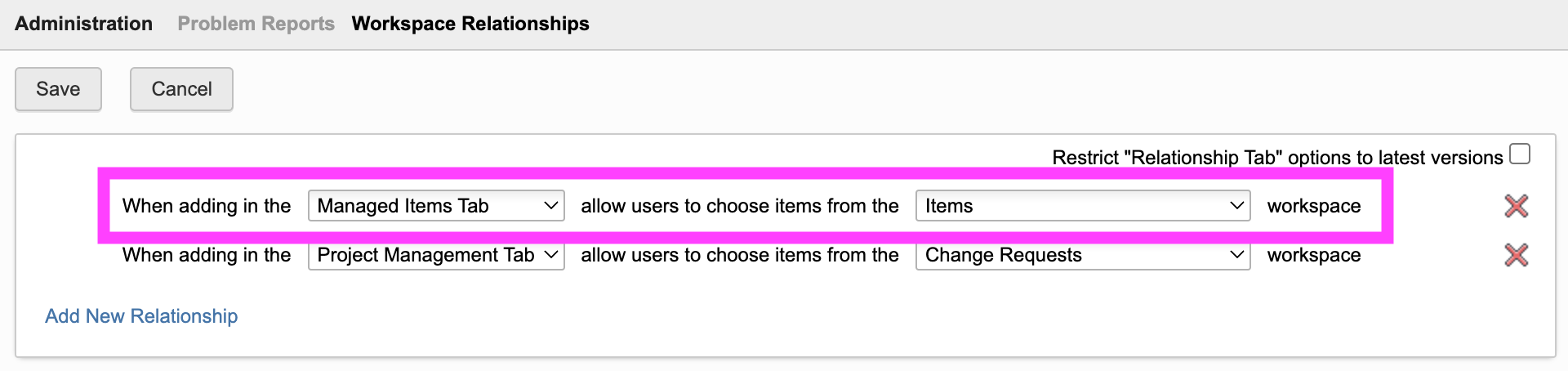
Open the Workspace Relationships control for workspace Problem Reports in the Workspace Manager. In here, enable connections to workspace Items in Managed Items Tab in order to support creation of new PRs.
Add button to launch the portal
Users can access the service portal by passing the dmsId and wsId of a given record, allowing to encode this information in a qr-code for example (see the end of this page for the given URL).
In addition, you may want to provide a button within the details page of an item to open the given portal from there. For this, add a new field Actions which contains the computed formula shown below. In case your tenant has the given field already, please add this button to the existing Actions field.
Note that this computed field requires the field DMS_ID which must contain the dmsId of the current record. As the other solutions of this package require this field as well, it is assumed that the given field exists already. If not, please add the field as single line text and let it be set upon item creation.
Keep in mind to update the workspace id contained in the formula below if needed. It refers to workspace ID 57 which matches the standard Items workspace. If you are using another id, please adjust the value of parameter wsId.
CASE WHEN (DMS_ID is null) THEN ''ELSE '<a style="color: #0a131c;border: 1px solid #bec8d2;border-radius:3px;text-align:center;text-decoration:none !important;line-height:26px;white-space:nowrap;padding:4px 20px;width:140px;font-weight:600;" target="_blank" href ="LOCATIONservice?wsId=57&dmsId='||DMS_ID||'">Service Portal</a>'END
Create Workspace Spare Parts Requests
The following steps are optional. Your Service Portal should be ready by now. However, if you want to initiate requests for selected spare parts from within the portal, then continue with the steps of this chapter.
Add Workspace
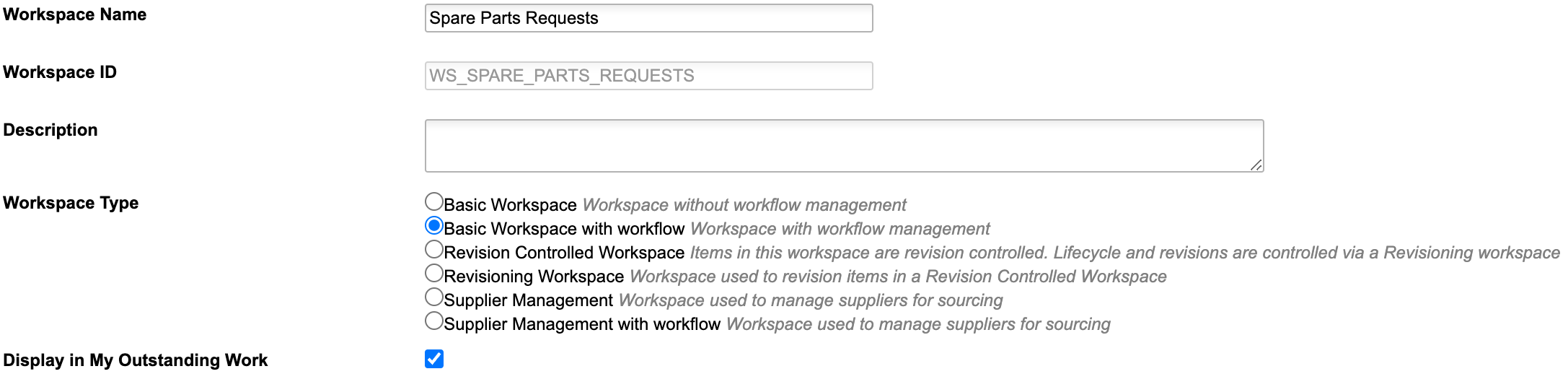
Users can trigger requests for spare parts in the given portal. This is made possible with a new workspace named Spare Parts Requests which you have to add before using all features this solution. Use the settings shown in the following screenshot when doing so.
Item Details Tab
Add the following fields to the new workspace. Keep the layout of the initial two sections as shown in the following screenshot. You may add further fields (non-mandatory) and sections when needed.
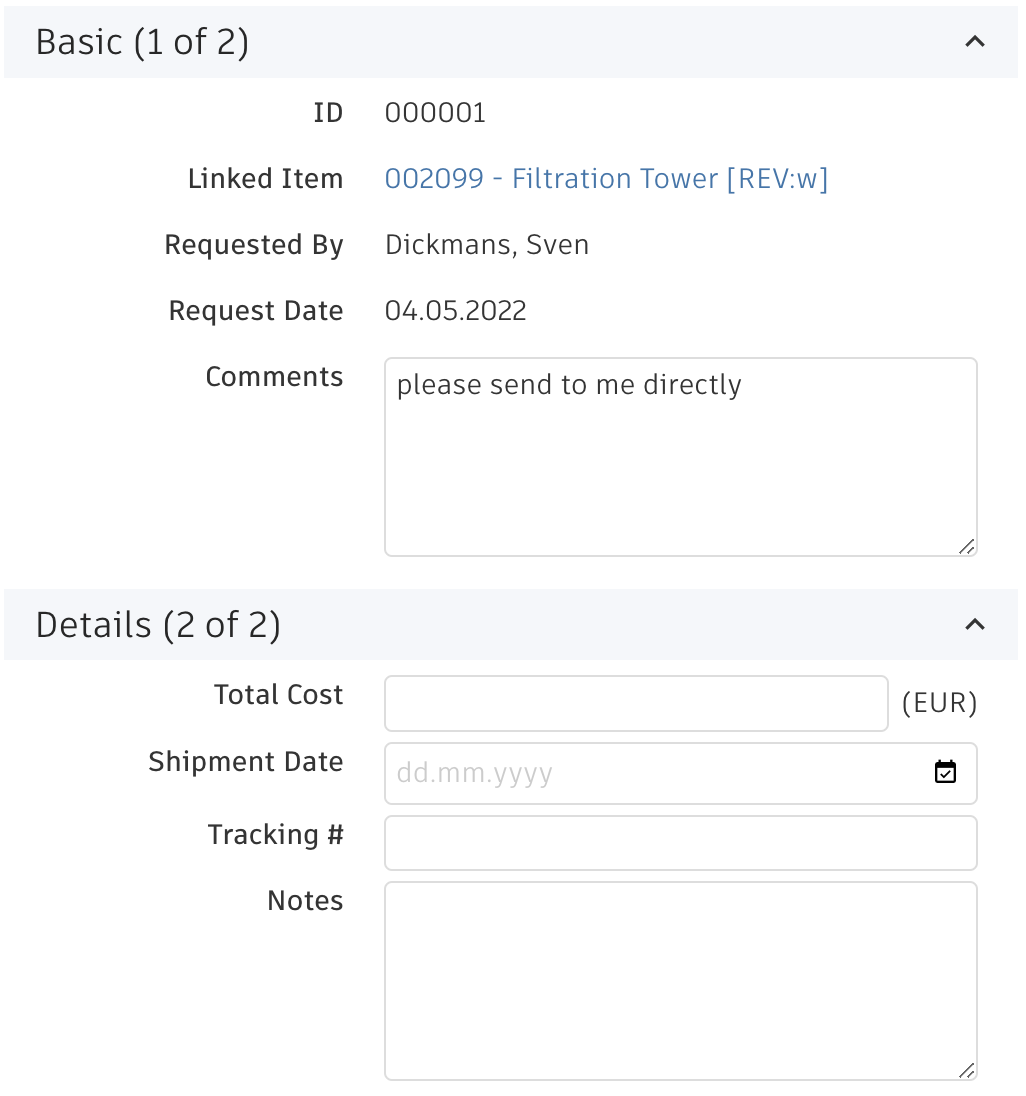
| Label | Field ID | Type | Details | Editable |
|---|---|---|---|---|
| ID | ID | Auto Number | Formula: AUTONUMBER('', ID__AUTO_INC, 6) | false |
| Linked Item | LINKED_ITEM | Pick List ([WS] Items, Single Selection) | length: 200 | Creation Only |
| Requested By | REQUESTED_BY | Single Line Text | length: 200 | false |
| Request Date | REQUEST_DATE | Date | - | false |
| Comments | COMMENTS | Paragraph | Length: 100000 | true |
| Total Cost | TOTAL_COST | Money | Length: 10, Field Precision: 0 | true |
| Shipment Date | SHIPMENT_DATE | Date | - | true |
| Tracking # | TRACKING | Single Line Text | Length : 200 | true |
| Notes | NOTES | Paragraph | Length: 100000 | true |
Descriptor
Set the descriptor for this workspace as you like (i.e. ID - Requested By)
Grid Tab
Add the following fields to the grid tab
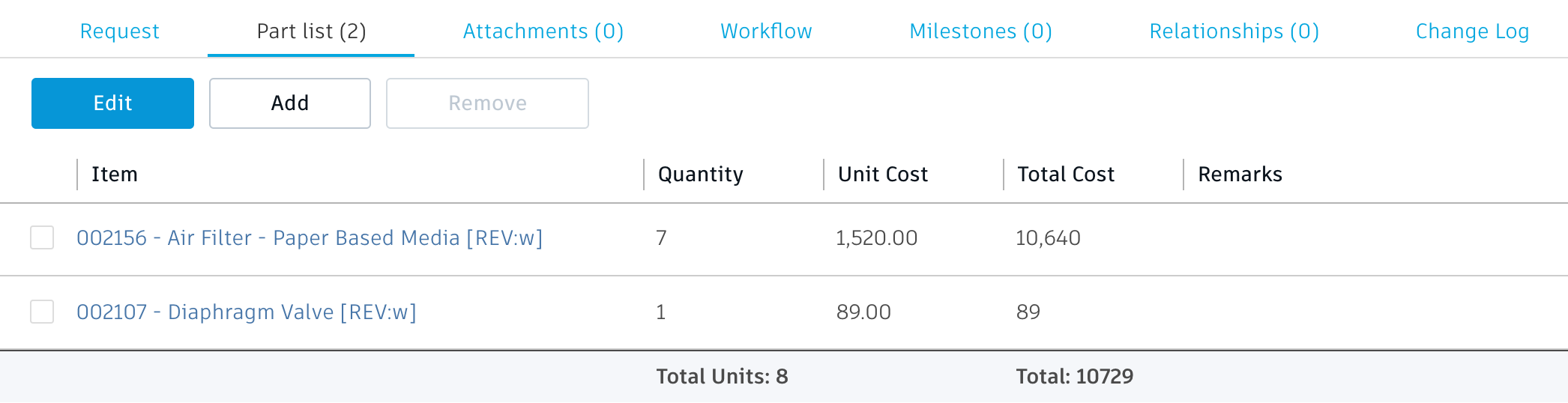
| Label | Field ID | Type | Details | Editable |
|---|---|---|---|---|
| Item | ITEM | Pick List | Pick List [WS] Items (Single Selection) | Creation Only |
| Quantity | QUANTITY | Integer | length: 10 | Creation Only |
| Unit Cost | UNIT_COST | Money | Length: 10, Field Precision: 2 | true |
| Total Cost | TOTAL_COST | Money | Formula: QUANTITY * UNIT_COST; Add aggregation type 'Sum' | false |
| Remarks | REMARKS | Single Line Text | Length: 200 | true |
Tab Names
Adjust the tab names for ease of use:
- Item Details > Request
- Grid > Part List
- Workflow Actions > Workflow
Scripts
Create a new Action script Spare Parts Requests WF Actions with the code shown below. Make sure to select library script getUserName in the script's imports.
item.REQUESTED_BY = getUserName();
item.REQUEST_DATE = new Date();
Workflow
Provide a workflow for this new workspace. While the workflow logic does not matter for this solution, make sure to attach the script Spare Parts Requests WF Actions as action script to the initial transition.
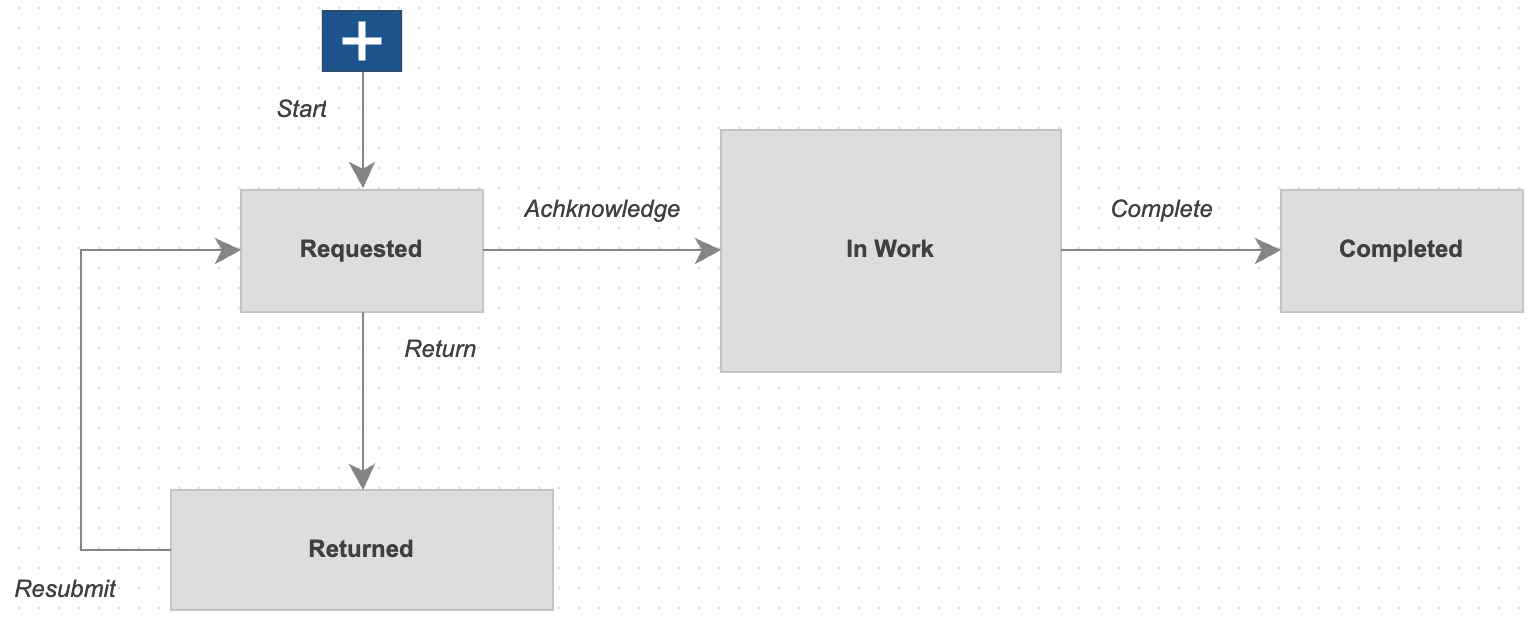
Access Permission
Add a role for this new workspace and assign this given role to your users to enable access. Grant full access (add, delete, edit and view) to the tabs Attachments, Grid, and Workflow.
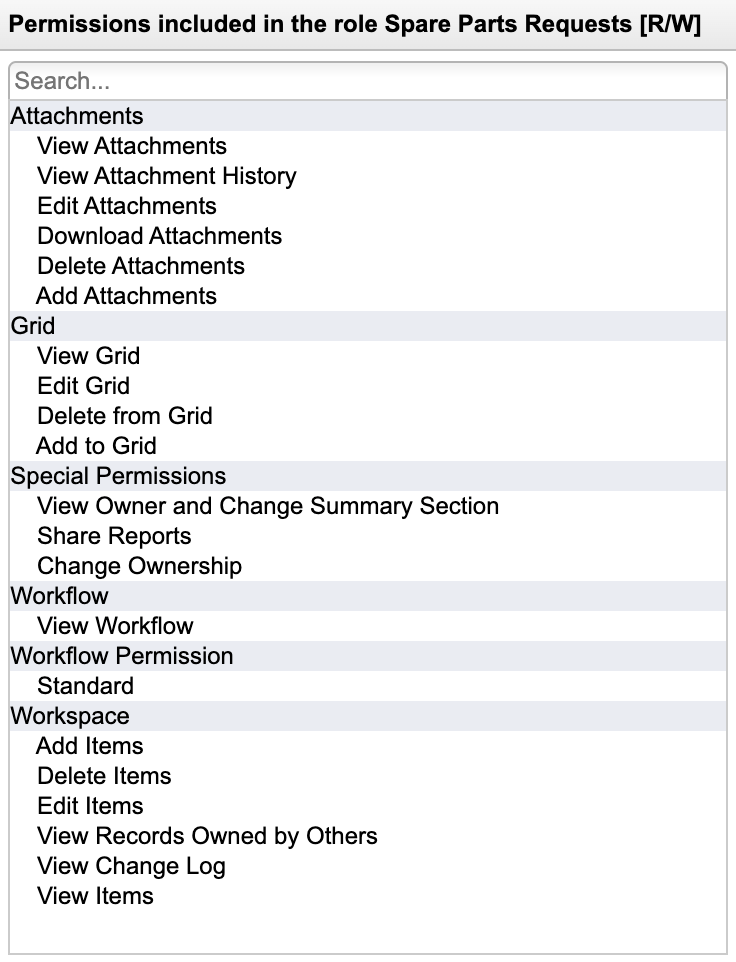
Configuration Settings
Once the previous steps have been completed, you should review the solution's settings in file settings.js before using the application:
export.config = {'service' : {'bomViewName' : 'Service','fieldId' : 'SPARE_WEAR_PART','fieldValues' : ['spare part', 'yes', 'x', 'y', 'wear part'],'spartPartDetails' : ['MATERIAL', 'ITEM_WEIGHT', 'DIMENSIONS'],'wsIdProblemReports' : 82,'wsIdSparePartsRequests' : 241}}
- bomViewName: Provide name of the BOM view that has been created in the previous steps (change should not be required)
- fieldId: ID of field being used to identify spare parts
- fieldValues: List of values (for the previous field) which are used to identify spare parts
- sparePartDetails: Each spare part tile can show 3 additional fields. If other fields than the default fields are relevent, change this list. However, make sure that there are exactly 3 entries and these fields also must be contained in the given BOM view.
- wsIdProblemReports : Provide the workspace ID of Problem Reports to enable creation of new processes from within the application (82 matches the default tenant configuration)
- wsIdSparePartsRequests : Provide ID of the new workspace Spare Parts Requests to enable creation of new requests from within the application
Access the Services Portal
You can access the Services Portal portal with the /service endpoint. Provide the wsId dmsId of the Items record to be visualised as parameter parameters. The following link will work for default demo tenants containing the default demo data. Please note that none of the demo items has been set as spare part yet:
Services Portal Change Log
| 26. September 2023 | Enhancement | Display root item name in web page title |
| 3. August 2023 | Bugfix | Improved behavior of markup toolbar at lower resolutions |
| Bugfix | Width of markups and font size of markup text can now be set properly | |
| 7. July 2023 | Enhancement | When spare parts get zoomed in, they will be highlighted in red within the viewer |
| New Feature | Users can click items in the viewer to get it selected in the spare parts list and to retrieve item details as well as attachments | |
| Enhancement | The Options button in main toolbar has been replaced by dedicated toggles | |
| Enhancement | All spare parts selected in the panel to the right will now be highlighted in blue within the viewer to continuously indicate the selection | |
| Enhancement | The (fake) stock information now is also shown with a colored border in the spare parts list | |
| Enhancement | When users click on BOM entries, geometry not being in context will be hidden (before, it was still shown transparently) | |
| 30. June 2023 | New Feature | The spare parts list now indicates the total quantity of the given component (qty is shown in white with black background) |
| New Feature | The entries in the spare parts list will automatically adjust its style in case of longer lists (tile height get reduced) |
Features
With this application, users can by far better assess the impact of changes by reviewing all details of the given Change Order's list of Affected Items.
To do so, multiple information is retrieved in parallel and devided in various tables. So for each affected item, users can easily review the following information:
- 3D view of the attached dwf
- Change Log tab reveals the item's change log
- The Item tab shows details defined in the affected items tab itself
- All Item Details can be reviewed in the Details tab
- The flat BOM can be listed in the BOM tab, where items that got changed will be highlighted by color.
- Users can select items in the BOM tab and have the given component highlighted in the 3D view
- The Where Used tab will be used to retrieve all End Items of an item (the root item nodes not having any further parents). In this view, users can also add the given nodes to the CO's list of Affected Items.
- In tab Impacted, users can see all records linked to the affected item within its Relationships tab. This tab also will show all BOM root nodes which are neither managed in the 'Items and BOMs' nor in the 'Vault Items and BOMs' workspace. The latter one will for example show if a component is used within a product's BOM.
- Inside the Impacted tab, users can easily link given records of interest to the current Change Order's References tab for later reuse
- In tab Changed Items, users can get the list of all BOM sub items where the working version got modified and which are not listed in the list of Affected Items yet
- The item's Attachments can be opened in the Files tab
- All item related change processes are listed in tab Processes
Configuration Changes
Peform the following changes to workspace Change Orders to enable the impact analysis before releasing a change. In addition, you can perform the same changes in workspace Change Requests to benefit of the exact same features while accessing impact of a proposed change.
Store DMSID
In order to make this dashboard work, you have to add a (hidden) field DMS_ID to the item details tab. This field must store the dmsID of the current process.
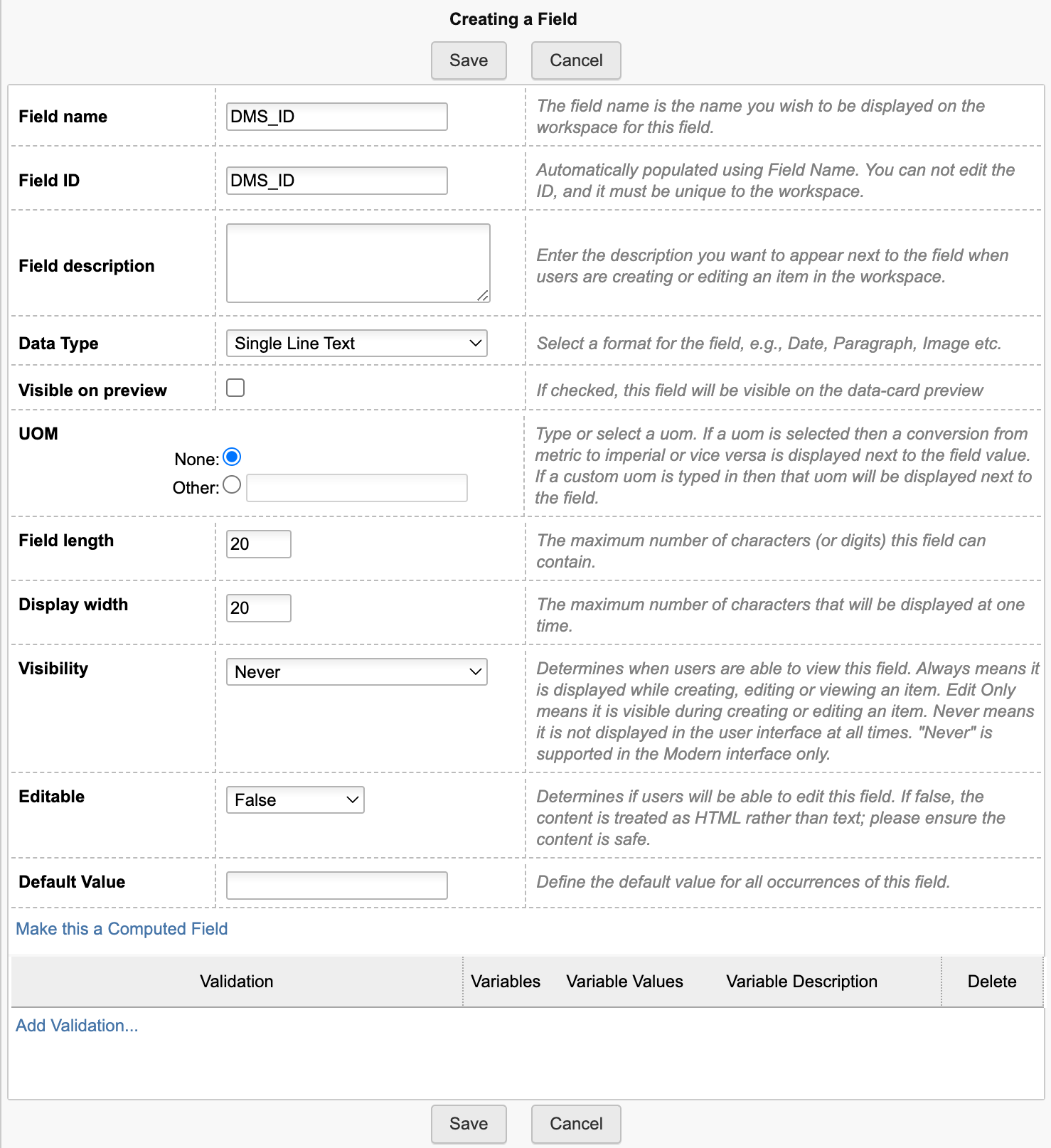
Use the following script code at Change Orders / Change Requests creation to store the given dmsID (attach this script to the initial workflow transition or the given create event):
item.DMS_ID = dmsID;
Action Button
Add a button to the Item Details tab, enabling to open the analysis dashboard in context ...
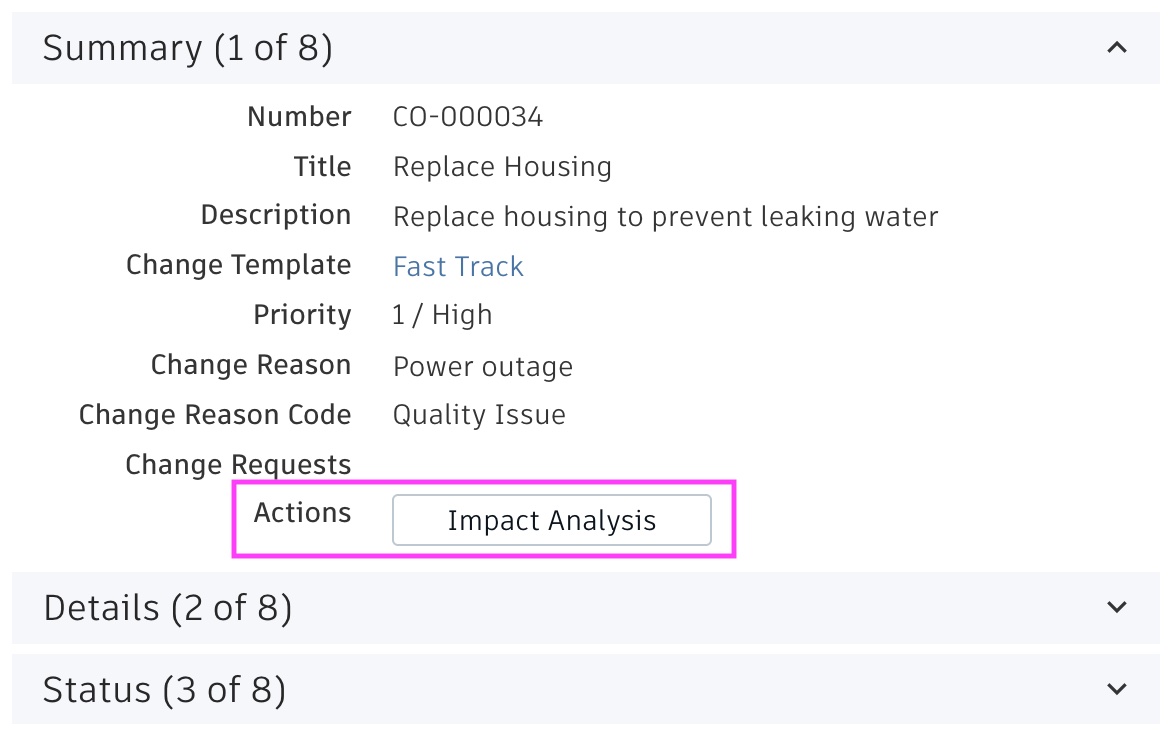
... implement this button by adding a computed field Actions with the formula shown below. Replace the workspace ID to match yours (..wsId=84..). In a standard tenant, 84 matches the Change Orders and 83 matches the Change Requests workspace.
'<a style="border: 1px solid #bec8d2;border-radius:3px;color: #0a131c;font-weight:600;line-height:32px;padding:4px 20px;text-align:center;text-decoration:none !important;white-space:nowrap;width:160px;" target="_blank" href ="LOCATIONimpactanalysis?wsId=84&dmsId='||DMS_ID||'">Impact Analysis</a>'
Set Workspace Relationships (optional)
The impact analysis dashboard enables to connect records of interest to the current change process. For example, the dashboard will retrieve related Requirements of each affected item - which then can be connected to the change process inside the dashboard for reference. This helps to create a comprehensive list of all data being impacted by a change. This mechanism requires to allow the given workspace relationships within the Workspace Manager. For example, you may want to enable Relationships for the change proceses to the workspaces Requirements and Supplier Packages. The dashboard will take this workspace configuration into account and only offer to connect workspaces that are valid.
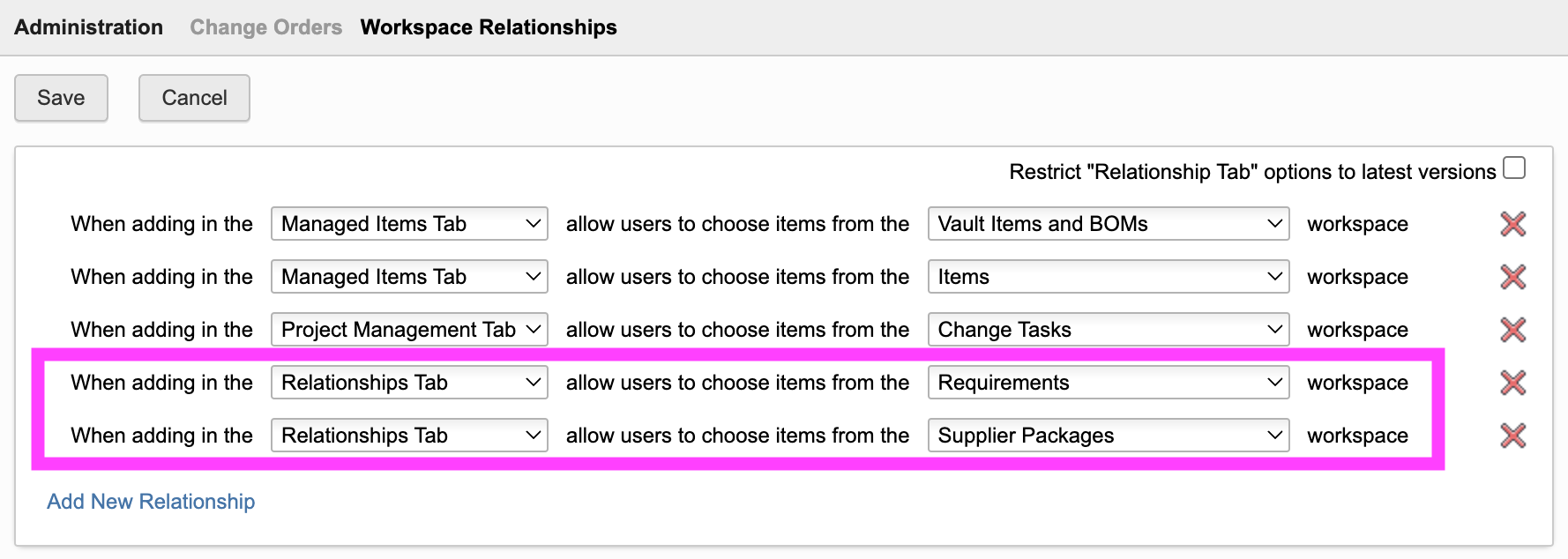
Access the Dashboard
The dashboard also can be opened by using the /impactanalysis endpoint, followed by wsId and dmsId. If your tenant contains the standard demo dataset, you can use the following link to open the dashboard for a given Change Order:
Change Impact Analysis Change Log
| 27. September 2023 | Enhancement | Indicate pending supplies, production orders and available stock for Affected Items (requires given columns) |
| 14. September 2023 | Enhancement | If CR or CO is locked, changes to affected items are no longer possible |
| 30. August 2023 | New Feature | If the Affected Items tab contains columns to manage current stock, pending production orders and pending deliverables, this information will be shown and highlighted. |
| 15. August 2023 | Enhancement | When opened from a Change Request, the list of Affected Items will display the Proposed Change property value |
| 7. July 2023 | Enhancement | Styling has been adjusted to improve usability |
Features
- Add EBOM items to the MBOM easily with clicks
- Add further items to the MBOM using drag & drop
- Use the Disassemble mode to quickly define the MBOM by reversing the order
- Use color codes to identify mismatches in EBOM and MBOM
- Access details of selected items in right hand side panel whenever needed
- Manage multiple MBOMs per EBOM item (i.e. site specific BOMs)
Important - Read before proceeding
This editor helps in transitioning an Engineering BOM to a Manufacturing BOM. This may involve one or two item workspaces, depending on your teannt configuration and preference. If your tenant has been created before Mid 2023, your tenant will most likelly have two workspaces to manage items: Items and BOMs as well as Vault Items and BOMs. If your tenant is more recent, it will only contain the new workspace named Items (unless you installed the Vault Items and BOMs from the template library).
If your tenant only has the single Items workspace, this workspace will be used to manage both the EBOMs and the MBOMs. In this case, all installation steps referring to both EBOM and MBOM must be applied to this workspace. You can skip all steps referring to the 2 Workspaces setup.
On the other hand, if you have two workspaces, you can use the one for the EBOM and the other one for the MBOM. In this case, you will most likely use Vault Items and BOMs as the EBOM workspace and Items and BOMs as the MBOM workspace. This setup is referred to as the 2 Workspaces setup in the instructions below. Of course, you can also choose one of these workpaces and use it for both EBOM and MBOM at the same time.
Note that the viewer inside the MBOM Editor will only work if the base EBOM item has a dwf file attached.
Configuration Changes for EBOM Workspace
Extend Item Details
Add a new section Manufacturing BOM with the following fields to this workspace:
| Field Name | Field ID | Data Type | Options | Visibility | Editable |
|---|---|---|---|---|---|
| DMS_ID | DMS_ID | Single Line Text | Length : 20 | Never | False |
| End Item | END_ITEM | Check Box | Always | True | |
| Matches MBOM | MATCHES_MBOM | Check Box | Always | True | |
| Ignore in MBOM | IGNORE_IN_MBOM | Check Box | Always | True | |
| Process Code | PROCESS_CODE | Single Line Text | Length : 10 | Always | True |
| Last MBOM User | LAST_MBOM_USER | Single Line Text | Length : 100 | Always | True |
| Last MBOM Sync | LAST_MBOM_SYNC | Date | Always | True | |
| MBOM | MBOM | Pick List | To MBOM workspace ([WS] Items), Single Selection | Always | True |
Finally, add a computed field 'MBOM_EDITOR' with the following formula. Make sure to provide the right workspace ID (...?wsId=57...). It has to match the EBOM workspace ID (57 matches the standard Items workspace).
CASE WHEN (DMS_ID is null) THEN 'Item ID is not set'WHEN (END_ITEM = true) THEN 'Not available for end items'WHEN (MATCHES_MBOM = true) THEN 'EBOM matches MBOM'ELSE '<a style="color: #0a131c;border: 1px solid #bec8d2;border-radius:3px;text-align:center;text-decoration:none !important;line-height:32px;white-space:nowrap;padding:4px 20px;width:140px;font-weight:600;" target="_blank" href ="LOCATIONmbom?wsId=57&dmsId='||DMS_ID||'">Edit MBOM</a>'END
While the layout does not matter, it is recommended to combine the given fields in a Matrix within this section as shown below.
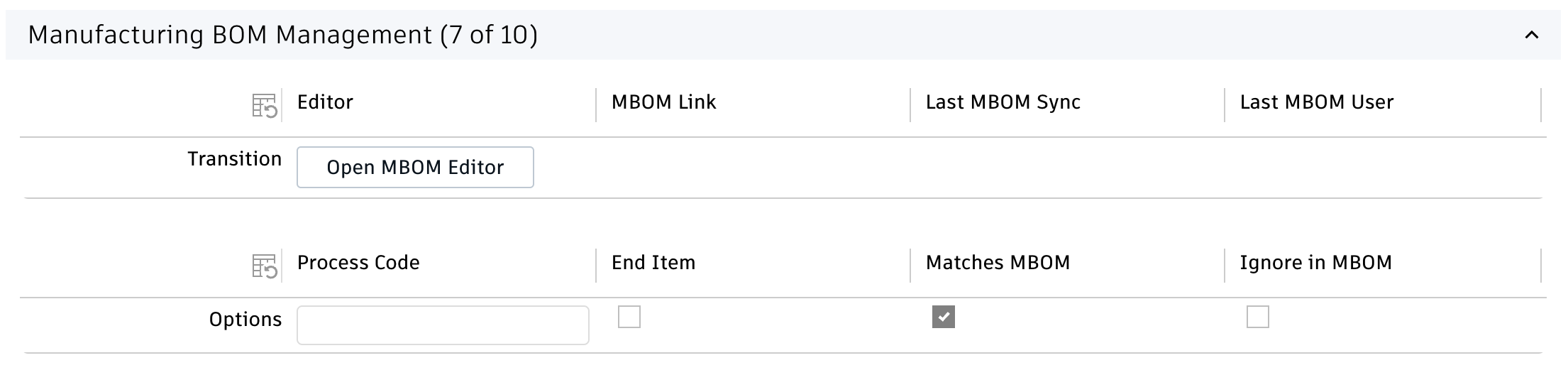
New BOM View
Add a new BOM view MBOM Transition to the EBOM workspace. Add all the fields that were created in the step before to this view - plus a few others. You may also add any further column as you like. The sequence of columns does not matter.
- Descriptor
- PDM Category
- Quantity
- Number
- MBOM
- Last MBOM Sync
- Process Code
- End Item
- Matches MBOM
- Ignore in MBOM
- Revision
Configuration Changes for MBOM Workspace
The following steps must be performed in the workspace to manage the MBOMs - which could be the same one as for the previous steps or a second one in case of a 2 workspaces setup.
Extend Item Details
If you use the same workspace for both the EBOM and MBOM, simply add the following fields to this EBOM & MBOM workspace. You may add these fields to the matrix created before:
- Add field EBOM as linking pick list to the EBOM workspace (EBOM, Single Selection, editable)
- Add checkbox 'Is Process' (IS_PROCESS, hidden, editable)
If instead you will use two different workspaces (i.e. manage the EBOM in Vault Items and BOMs and the MBOM in Items and BOMs workspace), you also have to add the following fields to the MBOM workspace in addition:
- If it does not exist yet, add Single Line Text field 'DMS_ID' (DMS_ID, length 20, not editable, hidden)
- Add date field 'Last MBOM Sync' (LAST_MBOM_SYNC, visible, editable)
- Add Single Line Text field 'Process Code' (PROCESS_CODE, length 10, visible, editable)
- Add computed field 'MBOM_EDITOR' with the following formula. Make sure to provide the right workspace ID (...?wsId=57...). It has to match the MBOM workspace ID (57 matches the standard Items workspace).
CASE WHEN (DMS_ID is null) THEN 'Item ID is not set'WHEN (END_ITEM = true) THEN 'Not available for end items'ELSE '<a style="color: #0a131c;border: 1px solid #bec8d2;border-radius:3px;text-align:center;text-decoration:none !important;line-height:32px;white-space:nowrap;padding:4px 20px;width:140px;font-weight:600;" target="_blank" href ="LOCATIONmbom?wsId=57&dmsId='||DMS_ID||'">Edit MBOM</a>'END
These fields once again can be managed in a dedicated section and matrix when using two distinct workspaces:

Add BOM Fields
Add two new fields to the BOM tab in your MBOM workspace
- Add Checkbox field 'Is EBOM Item' (IS_EBOM_ITEM, hidden, editable)
- Add Single Line Text field 'EBOM Root Item' (EBOM_ROOT_ITEM, length 50, hidden, editable)
BOM View
If you use the same workspace for both the EBOM and MBOM, add the following fields to the existing BOM view MBOM Transition:
- EBOM
- Is Process
- Is EBOM Item
- EBOM Root Item
If instead you will use two different workspaces, you have to add a new BOM view MBOM Transition with at least the following columnns:
- EBOM
- Is Process
- Process Code
- Descriptor
- Revision
- Quantity
- Is EBOM Item
- EBOM Root Item
Additional step for 2 workspaces setup
Make sure that the MBOM workspace allows for BOM connections to the EBOM workspace:
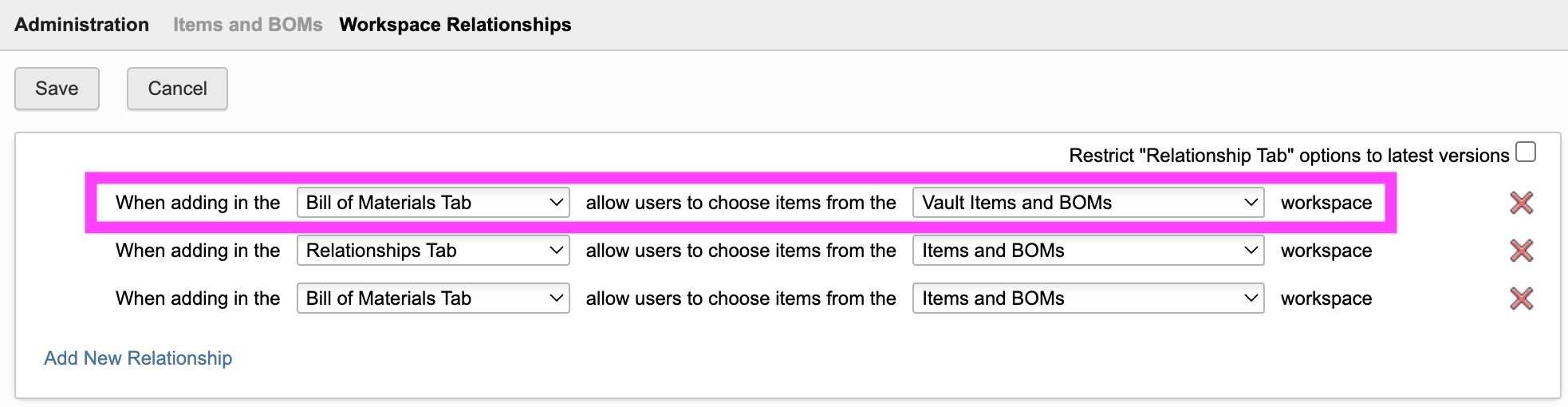
Scripts
For both the EBOM and MBOM workspace, the system has to store the dmsID for new records in field DMS_ID. Add the following script code to the creation event of both workspaces. If your tenant is based on the template released in April 2023, this field exists in your tenant and will be set by script already.
item.DMS_ID = dmsID;
Default Values for new items
When users add operations and MBOM items, these new items may receive default values for defined fields, like a specific type. Such defaults can be defined in the file settings.js - see next chapter for details. The default settings file provides a placeholder example:
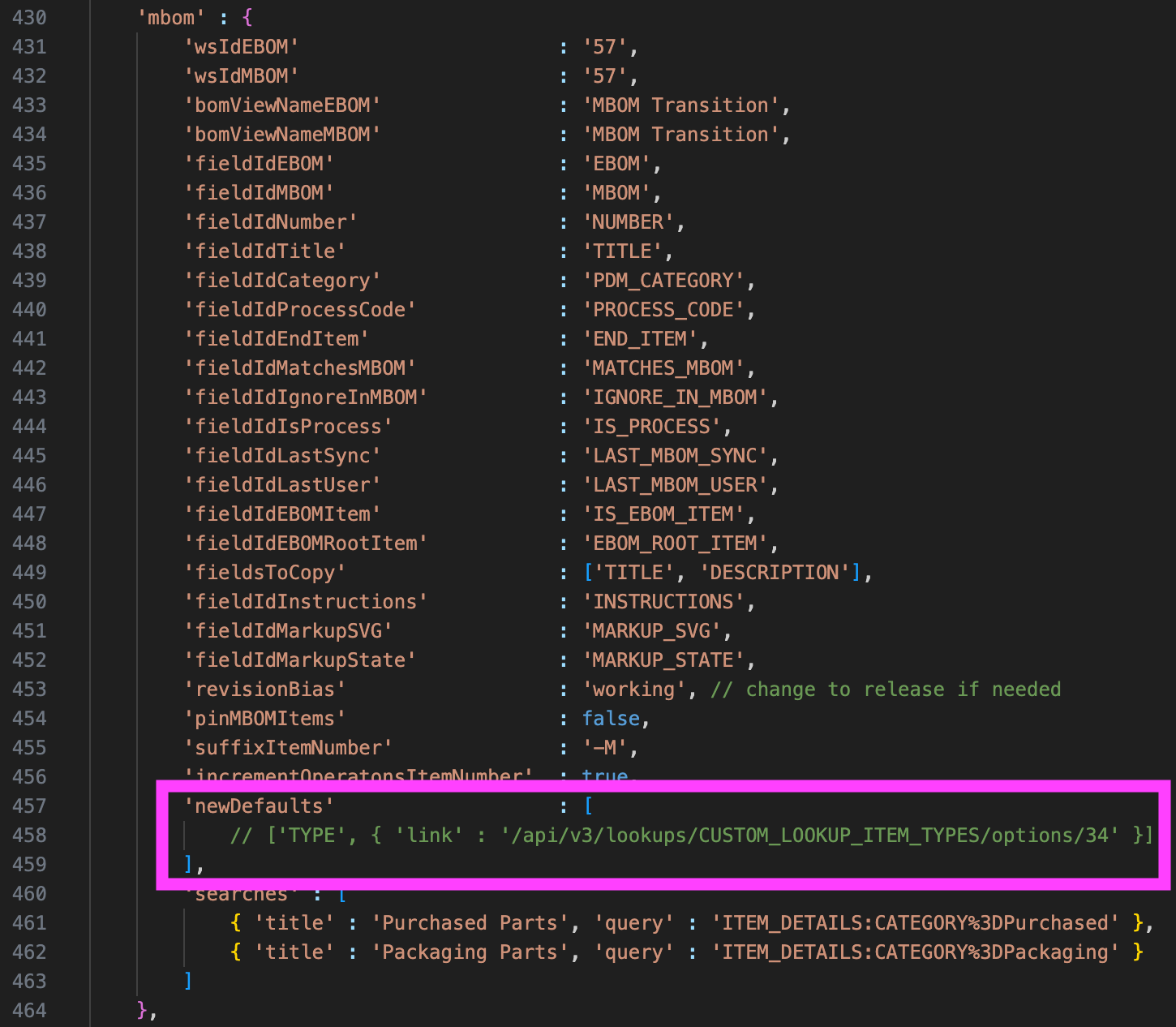
You can provide an array of all the fields to be populated with default values. As shown in the example above, this requires the field's ID (TYPE) and value. In addition, the setting fieldsToCopy enables definition of a list of fields which will be copied from the given related EBOM item to the new MBOM item.
Server Settings File
Review the following contents in file settings.js. The default configuration matches the standard tenant template and makes use of the Items workspace only. If you change this file, a restart of your server is required.
export.config = {'mbom' : {'wsIdEBOM' : '57','wsIdMBOM' : '57','bomViewNameEBOM' : 'MBOM Transition''bomViewNameMBOM' : 'MBOM Transition''fieldIdEBOM' : 'EBOM'...}}
Field Mapping
This area within settings.js contains a couple of parameters to adjust the field IDs being used whenever needed. You may want to review this list, but if you followed the setup instructions, this mapping should be fine already.
| fieldIdEBOM | Field of MBOM workspace to refer to given EBOM item |
| fieldIdMBOM | Field of EBOM workspace to refer to given MBOM item |
| fieldIdNumber | Number field of both EBOM and MBOM Workspace |
| fieldIdTitle | Title field of MBOM Workspace that will be used when creating new processes |
| fieldIdCategory | Category field of EBOM Workspace (being used to highlight certain categories) |
| fieldIdProcessCode | Process Code field of both EBOM and MBOM Workspace |
| fieldIdEndItem | End Item field of EBOM Workspace |
| fieldIdMatchesMBOM | Matches MBOM field of EBOM Workspace |
| fieldIdIgnoreInMBOM | Ignore in MBOM field of EBOM Workspace |
| fieldIdIsProcess | Is Process field of MBOM Workspace |
| fieldIdLastSync | Last MBOM Sync field of EBOM and MBOM Workspace |
| fieldIdLastUser | Last MBOM User field of EBOM Workspace |
| fieldIdEBOMItem | Field 'Is EBOM Item' in MBOM Workspace BOM |
| fieldIdEBOMRootItem | Field 'EBOM Root Item' in MBOM Workspace BOM |
Application Options
Following settings are much more important. They impact the mechanism of the MBOM Editor. Please review these settings carefully.
| Setting | Default Value | Description |
|---|---|---|
| wsIdEBOM | 57 | Workspace ID of your EBOM Workspace |
| wsIDMBOM | 57 | Workspaces ID of your MBOM Workspace (can be the same as EBOM or a different one) |
| bomViewNameEBOM | MBOM Transition | BOM View being used to expand the EBOM |
| bomViewNameMBOM | MBOM Transition | BOM View being used to expand the MBOM |
| fieldsToCopy | ['TITLE', 'DESCRIPTION'] | Defines a list of fields to be copied from EBOM to MBOM when the editor creates the MBOM root node. This is happening when the editor is launched for the first time for a given EBOM item. These fields must be available in both the EBOM and MBOM workspace with the same id. |
| revisionBias | working | Defines the BOM expansion bias, ensuring to use working versions of all items automatically. Change this to release if you want to work with released data instead. Note that if set to working, the MBOM Editor will automatically navigate to the latest working version of an EBOM item, even if it gets opened from a released item. |
| pinMBOMItems | false | Determines if relationship in MBOM should be pinned to the given revision |
| suffixItemNumber | -M | When the editor is opened for an EBOM item that does not have matching MBOM item yet, this given MBOM root item will be created automatically. If this parameter is set, this MBOM root item will be created with the same part number as the matching EBOM item plus the given suffix. With this standard value, EBOM item 00812 will be connected to MBOM item 00812-M for example. |
| newDefaults | ['ITEM_TYPE' , { 'link' : '/api/v3/lookups/CUSTOM_LOOKUP_ITEM_TYPES/options/34' }] | Provide default values for new items being created by the MBOM Editor (i.e. the Processes). Provide an array of pairs containing fieldId and given value. The default value sets the item to 'Process' (works with latest tenant template only). |
| searches | [{ 'title' : 'Purchased Parts', 'query' : 'ITEM_DETAILS:CATEGORY%3DPurchased' }, { 'title' : 'Packaging Parts', 'query' : 'ITEM_DETAILS:CATEGORY%3DPackaging' }] | The Add Items tab may provide preconfigured queries for quick access to relevant MBOM items, right underneath the generic Search view. This list of predefined views can be adjusted here. Provide a list of views, defined by a title to be displayed in the editor and the given query string to execute. If you are not sure about the query string, please have a look at the standard search dialog and review the Network tab in your browser to grab the matching search filters. |
Viewer Options
The MBOM Editor will load the selected EBOM item's viewable in the viewer and allow for interactions between the BOMs and the viewer. However, this requires a mappging of your item numbers and the property within the dwf which holds the item number as well.
For a proper match, see the 'viewer' parameters at the end of settings.js. Provide the field ID of your Number field in EBOM workspace as 'fieldIdPartNumber'. Additionally, provide a list of possible property names in 'partNumberProperties' that might be present in your dwf files and contain the matching number too - the first occurence will be taken into account.
export.config = {'viewer' : {'fieldIdPartNumber' : 'NUMBER''partNumberProperties' : ['Part Number', 'Name', 'label', 'Artikelnummer', 'Bauteilnummer'],'backgroundColor' : 255,'groundReflection' : false,'groundShadow' : true...}}
Support for multiple sites
With the standard configuration steps above, there will be only one MBOM per EBOM. However, the setup can be changed to support multiple MBOMs, for example to have site specific MBOMs. To achieve this setup, the fields that were created formerly must be cloned for each site.
By following the steps below, the existing fields will be kept in order to have a 'standard' base MBOM. In addition, further fields will be added to capture the MBOM for 'Site 1' and 'Site 2'.
Each site requires a unique id that you can define yourself. This id must be used to name the new fields and it will be passed to the MBOM editor to define the site context. In this setup, 'G' will be used for the generic MBOM while '1' and '2' are used for the site specific MBOMs. Keep in mind that these suffixes will get appended to all site specific MBOM item numbers.
- In the EBOM workspace, adjust the layout of the MBOM transition section as shown below, by adding a second matrixes to hold all the site specific contents:
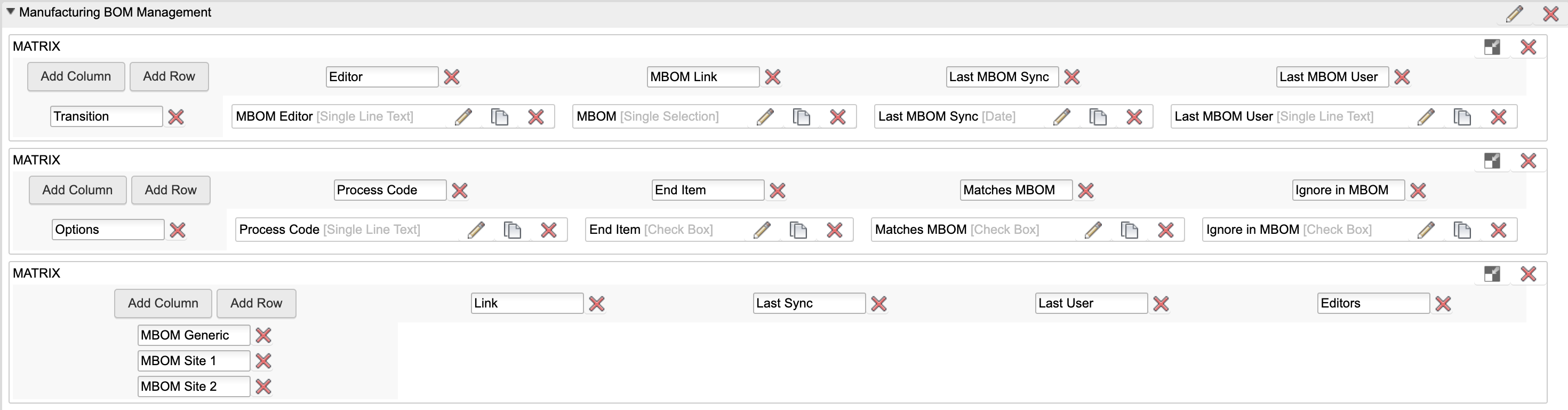
- Create new fields for the 2nd matrix. You have to create the same fields multiple times, one for each site. Always append the site index (G, 1, 2) to each field while keeping the field base name identical. Here are the fields for the Generic MBOM:
- MBOM_G: Linking picklist to MBOM item workspace (single selection, editable)
- LAST_MBOM_SYNC_G: Date field (editable)
- LAST_MBOM_USER_G: Single Line Text (length 100, editable)
- MBOM_EDITOR_G: Computed field with the following formula. Note that the URL contains a parameter to identify the site (G)
CASE WHEN (DMS_ID is null) THEN 'Item ID is not set'WHEN (END_ITEM = true) THEN 'Not available for end items'WHEN (MATCHES_MBOM = true) THEN 'EBOM matches MBOM'ELSE '<a style="color: #0a131c;border: 1px solid #bec8d2;border-radius:3px;text-align:center;text-decoration:none !important;line-height:32px;white-space:nowrap;padding:4px 20px;width:140px;font-weight:600;" target="_blank" href ="LOCATIONmbom?wsId=57&dmsId='||DMS_ID||'&options=site:G">Edit MBOM</a>'END
Repeat these steps for site 1 and 2 accordingly.
- If you followed the setup instructions for a single MBOM before, remove the following fields as they are no longer required:
- MBOM
- Last MBOM Sync
- Last MBOM User
- MBOM Editor
- In the end, the MBOM section should look like this:
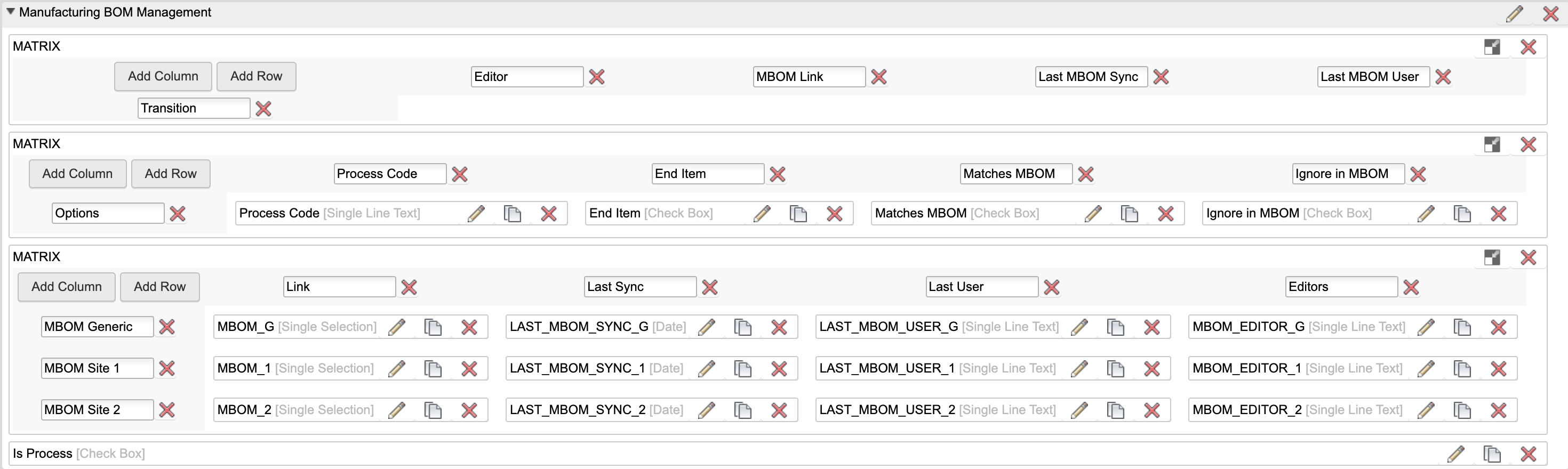
Note that you can choose other field labels of course. This documentation only reuses the field ID to better describe the setup process.
- In the EBOM workspace's BOM view MBOM Transition add the following columns:
- MBOM_G
- MBOM_1
- MBOM_2

Note that your bom view might be named differently. Check for the name in use by validating setting mbom.bomViewNameEBOM in settings.js
Users are now able to open the editor for a specific site. Each site will receive a specific MBOM with a dedicated part number (the site suffix gets appended at the end):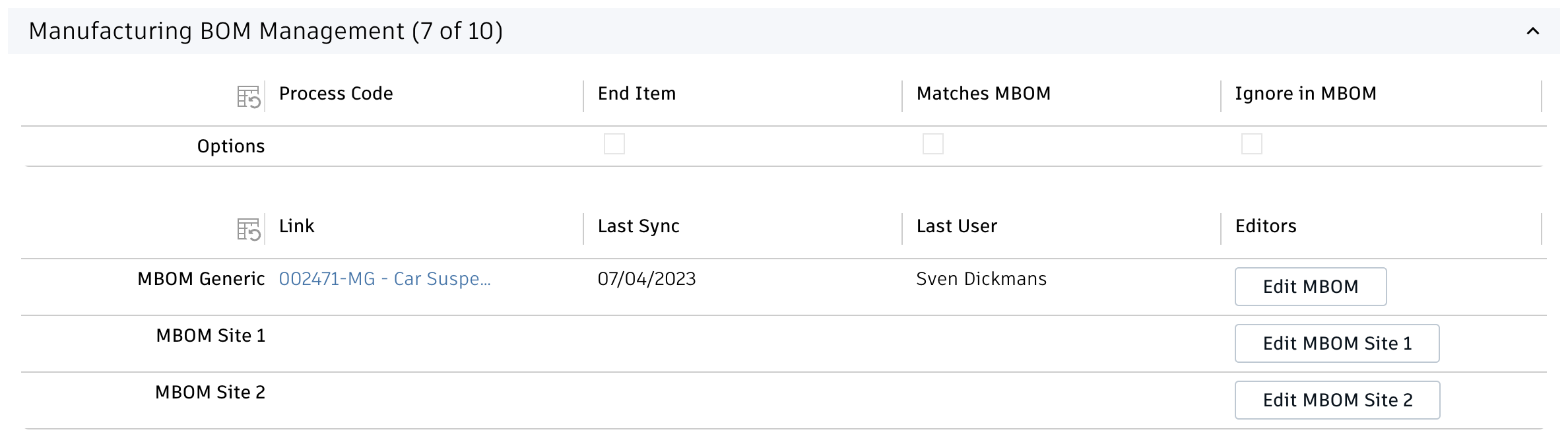
MBOM Editor Change Log
| 21. September 2023 | New Feature | When items in MBOM get selected, the adjacent items get highlighted in the viewer as well (red and green) |
| 3. August 2023 | Bugfix | Switch to latest version automatically (i.e. if editor is opened from Rev A, the editor will locate matching working version first and then open data for this working version item) |
| 21. July 2023 | New Feature | Insert EBOM as is to MBOM (supported by checkbox Matches MBOM) |
| New Feature | Insert EBOM as MBOM node (this creates the matching MBOM for the given EBOM in the editor and inserts the node) | |
| 7. July 2023 | New Feature | Support of multiple Manufacturing BOMs per item |
| Enhancements | Better alignment with new default client: ready-to-use settings and replacement of 'operations' with 'processes' reflected by a dedicated item type | |
| Bugfix | Items that are added from outside the EBOM will no longer be taken into account in item matching / coloring | |
| Bugfix | When items get added to a location twice, its quantity will be increased accordingly; there will be no second node in the BOM any |
Features
- Manage variant items that inherit master data from the base item
- 3D viewer helps to identify the right items
- Keep multiple BOM structures in sync
- Manage multiple variants at the same time or focus a single variant only
- Dynamically define the properties that define a variant
New Workspace Item Variants
A new workspace is required to manage items and BOMs that are specific for a given variant. These item variants will refer to the given base item to allow for data reuse by using derived fields, but will also have additional fields that define a variant (i.e. color, material, dimeions, serial #, ...). Customers can choose any properties they like for these variant specific properties, the application will adjust accordingly.
Create new workspace
Use the Workspace Manager to create new workspace Item Variants as revision controlled workspace. 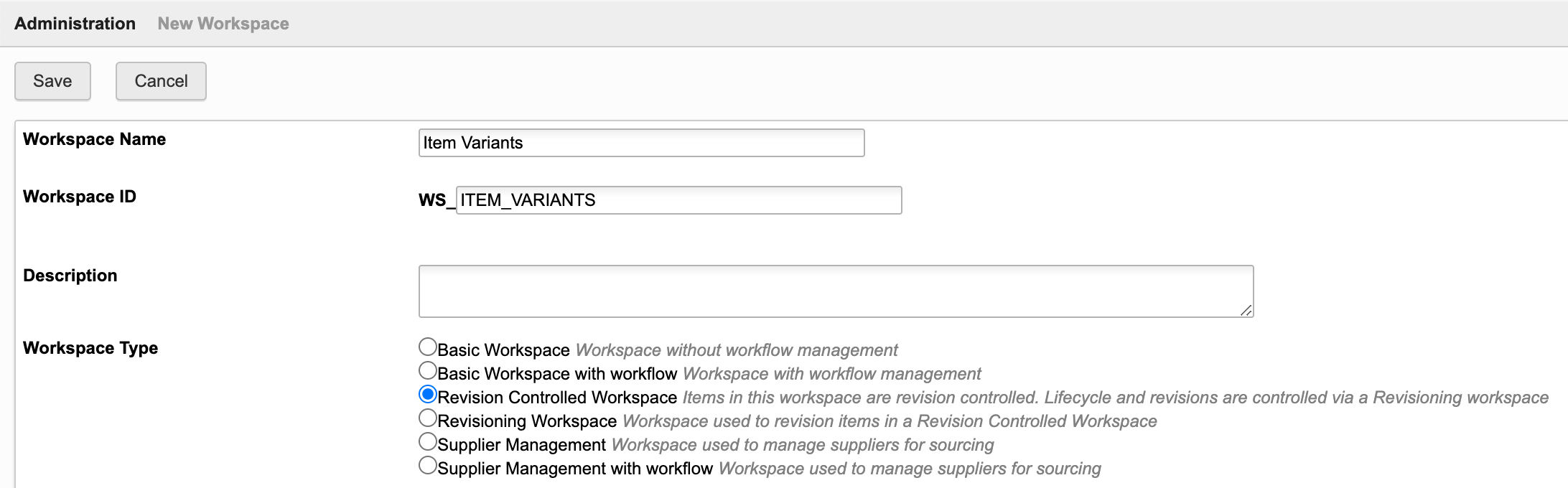
Set Item Details of new workspace
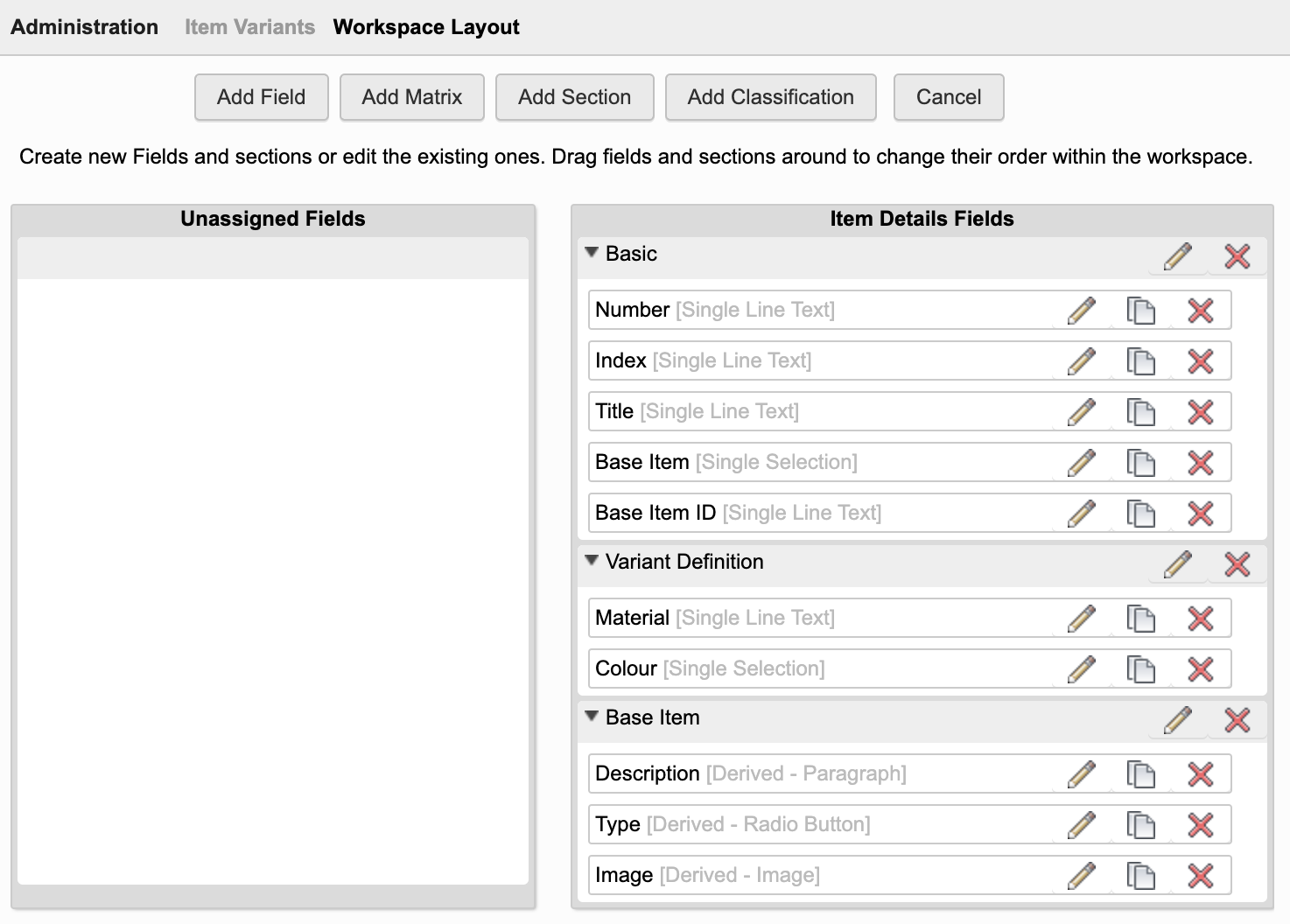
Create 3 sections in Item Details tab:
- Basic
- Variant Definition
- Base Item
Add the following fields to section Basic:
- Number (id: NUMBER, Single Line Text, length : 20, Visibility : Always, Editable: false)
- Index (id: VARIANT_INDEX, Single Line Text, length : 5, Visibility : Always, Editable: false)
- Title (id: TITLE, Single Line Text, length: 200, Editable: true)
- Base Item (id: BASE_ITEM, Picklist to [WS] Items, single selection, Editable: false)
- DMS_ID_BASE_ITEM (id: DMS_ID_BASE_ITEM, Single Line Text, length : 20, Visibility : Never, Editable: true)
In section Variant Definition, add all the fields that will be used to define a variant, for example Colour and Material. This section may include any type of field, including pick lists (with single selection).
All data that should be derived from the Base Item must be defined in section Base Item Data. Make use of derived fields to copy data from the given base item. This may for example include Type, Description, Image and further fields of your items workspace.
Descriptor
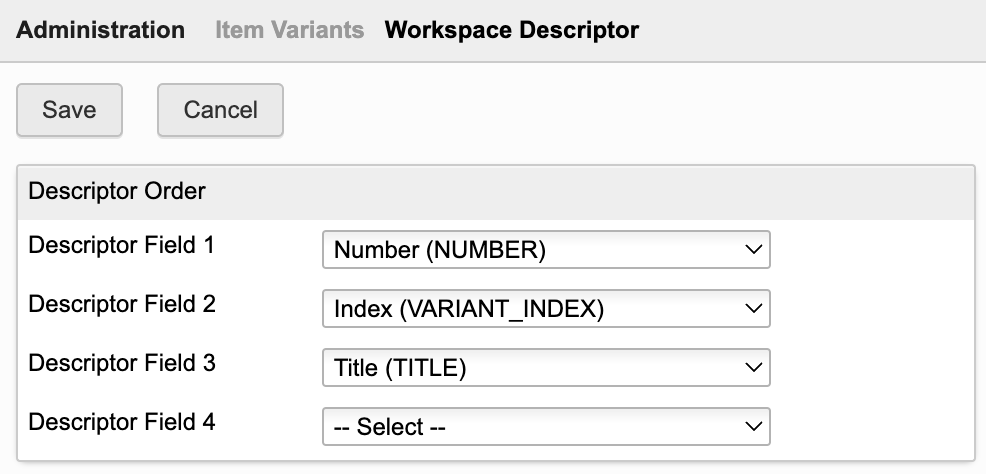
Set the workspace's Descriptor to display the fields Number, Index and Title:
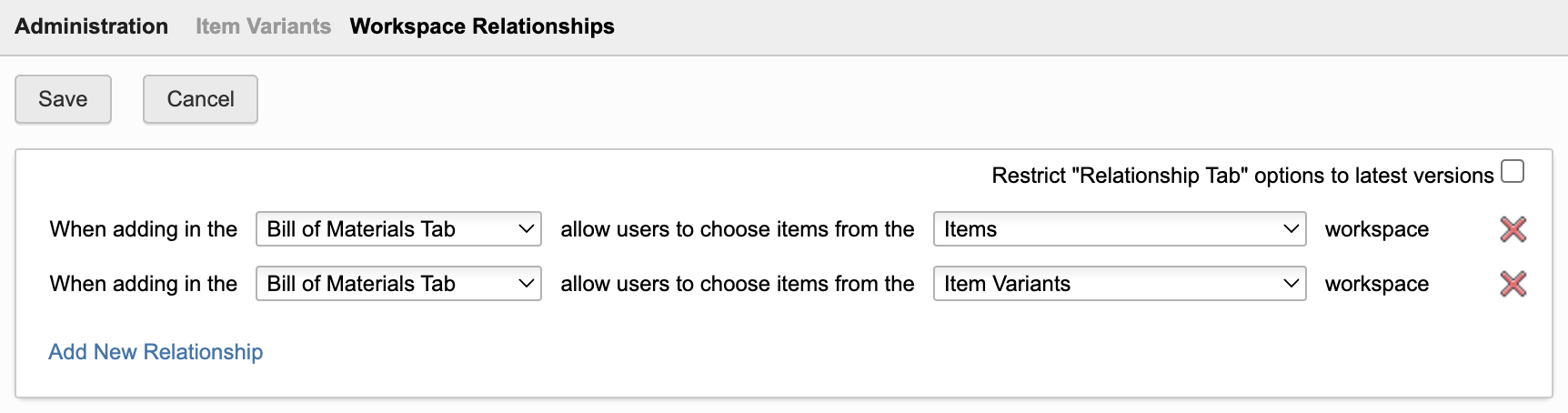
Workspace Relationships
Enable required relationships in the BOM tab:
As Item Variants are revision controlled, add this new workspace to the Managed Items tab of the following workspaces:
- Problem Reports
- Change Requests
- Change Orders
Access Permissions
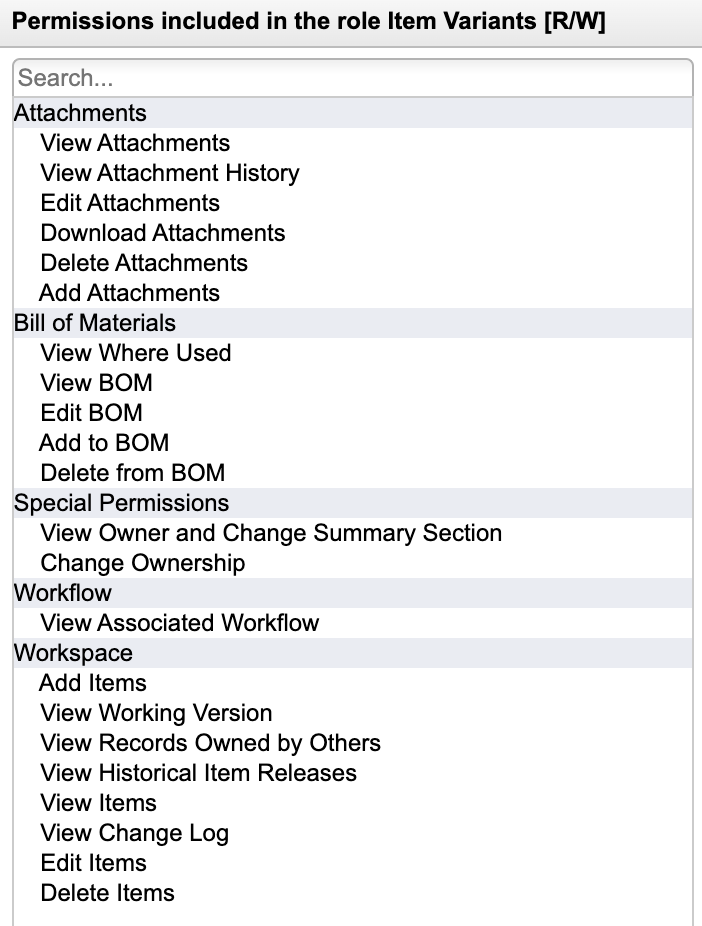
Create a role for the new workspace enabling creation of new records, BOM management and attachments.
Make sure that users also can access the working versions of records.
Bill of Materials tab
Add the following BOM field in workspace Item Variants:
| Field ID | Field Type | Field Settings | Editable |
|---|---|---|---|
| EDGE_ID_BASE_ITEM | Single Line Text | Length : 20, Visibility: Never | true |
Add the following columns to the Default View (sequence does not matter):
| Field ID | Field Source |
|---|---|
| EDGE_ID_BASE_ITEM | BOM Fields |
| DMS_ID_BASE_ITEM | Item Details Fields |
In addition, add all fields of section Variant Definition to this table (for example Colour and Material).
Scripts
In order to link the variant items with the given base items, a script is required. Create a new action script Item Variants onCreate onEdit and attach this script to the create and edit event of workspace Item Variants:
linkBaseItem();
function linkBaseItem() {if(item.BASE_ITEM !== null) return;if(item.DMS_ID_BASE_ITEM === null) return;var elemBase = loadItem(item.DMS_ID_BASE_ITEM);var listVariants = elemBase.VARIANTS;if(listVariants === null) {listVariants = []; elemBase.VARIANTS = item; } else elemBase.VARIANTS.add(item);item.NUMBER = elemBase.NUMBER;item.VARIANT_INDEX = ('00' + listVariants.length).toString().slice(-2);item.BASE_ITEM = elemBase;}

Action Button
Enable access to the Variants Manager app by adding a new computed field to your Items workspace. Use the following formula for the new field:
'<a style="border: 1px solid #bec8d2;border-radius:3px;color: #0a131c;font-weight:600;line-height:32px;padding:4px 20px;text-align:center;text-decoration:none !important;white-space:nowrap;" target="_blank" href ="LOCATIONvariants?wsId=57&dmsId='||DMS_ID||'">Variant Manager</a>'
Adjust Items Workspace
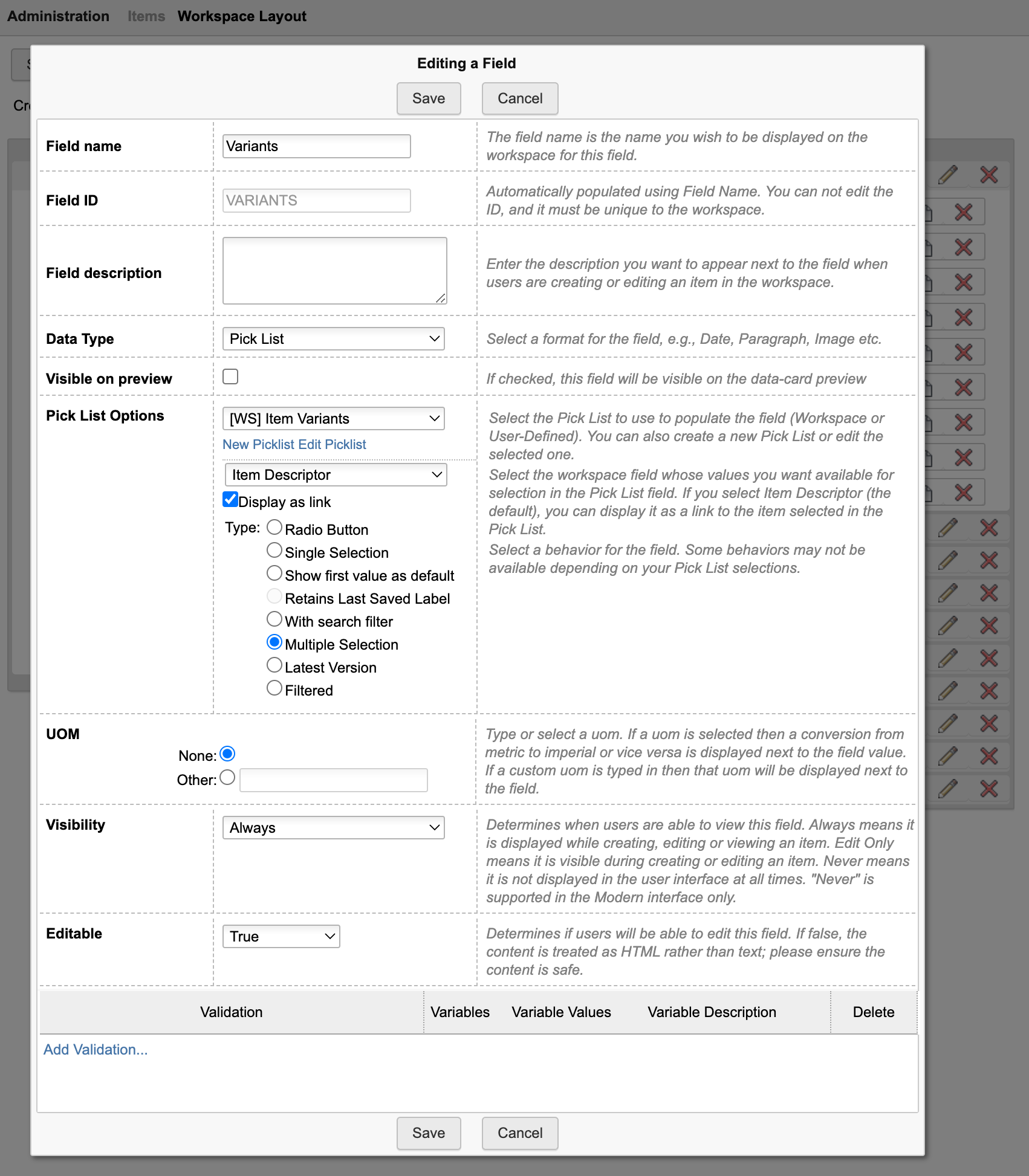
Add field Variants
In the Item Details tab of workspace Items, add a linking picklist field Variants allowing multiple selection. This field should link to the new Item Variants workspace created before. Set this field visible and editable.
Add field to store dmsID
The items workspace (from where the app will be launched) also must have a field containing the item's dmsID. If not present yet, add a new single line text field with id DMS_ID in the items workspace (hidden). Let this field be set automatically at item creation by script as shown below.
Tenants created mid 2023 or later have this field and script already.
item.DMS_ID = dmsID;
Configure BOM View
The application requires a BOM view with the following columns:
| Field | Field Source |
|---|---|
| Descriptor | System Fields |
| Quantity | BOM Fields |
| Number | Item Details Fields |
You may add a new view Variant Management with these columns or reuse an existing BOM view containing these columns (the view may also contain further columns of course). If you prefer to use a BOM view that is not named Variant Management, you have to speficfy this view's name in the server's settings file in parameter.
config.variants.bomViewNameVariants : 'Variant Management'
See next chapter for details.
Server Settings File
If you require usage of different field names, table names etc, please have a look at the settings.js file and locate section variants, listing all possible configurable settings as shown below. Review the first option wsIdItemVariants which must contain the workspace ID of your newly created workspace. You can retrieve this ID from your browser's URL when navigating to this workspace using the workspaces menu.
export.config = {'variants' : {'wsIdItemVariants' : 208'variantsSectionLabel' : 'Variant Definition','fieldIdVariantBaseItem' : 'DMS_ID_BASE_ITEM','fieldIdItemVariants' : 'VARIANTS','bomViewNameItems' : 'Variant Management','bomViewNameVariants' : 'Default View'}}
Adjust these settings if needed and restart your server afterwards to apply the given changes.
| Setting | Default Value | Description |
|---|---|---|
| wsIdItemVariants | - | Workspace ID of your new Item Variants workspace |
| variantsSectionLabel | Variant Definition | Name of section in the Item Variants workspace which contians all the fields that define a variant. This section will drive the columns of the manager dialog. |
| fieldIdItemVariants | VARIANTS | Field ID of your Items workspaces which contians the linking picklist to item variants, to allow for retrieval of existing variants. |
| bomViewNameItems | Variant Management | BOM view of items workspace which contains the required fields |
| bomViewNameVariants | Default View | BOM view of item variants workspace which contains the required fields |
Variant Manager Change Log
| 7. July 2023 | Initial Release | This is the very first version of this application |
Prerequisites
You can use this solution with any workspace that has the Classification section enabled. The installation instructions below describe how to enable this extension for workspace Items, but you can also enable it for any other workspace (including Items and BOMs and Vault Items and BOMs).
Required Changes
Item Details Tab
Use the Workspace Manager to add the fields described below to your context workspace. It is recommended to add all these fields to the same (new) section Classification Summary and position them in a matrix, but both is not required. These fields will be set by script, so their placement does not matter. Tenants created mid 2023 or later will have all these fields already, only the last one Class Browser should be missing.
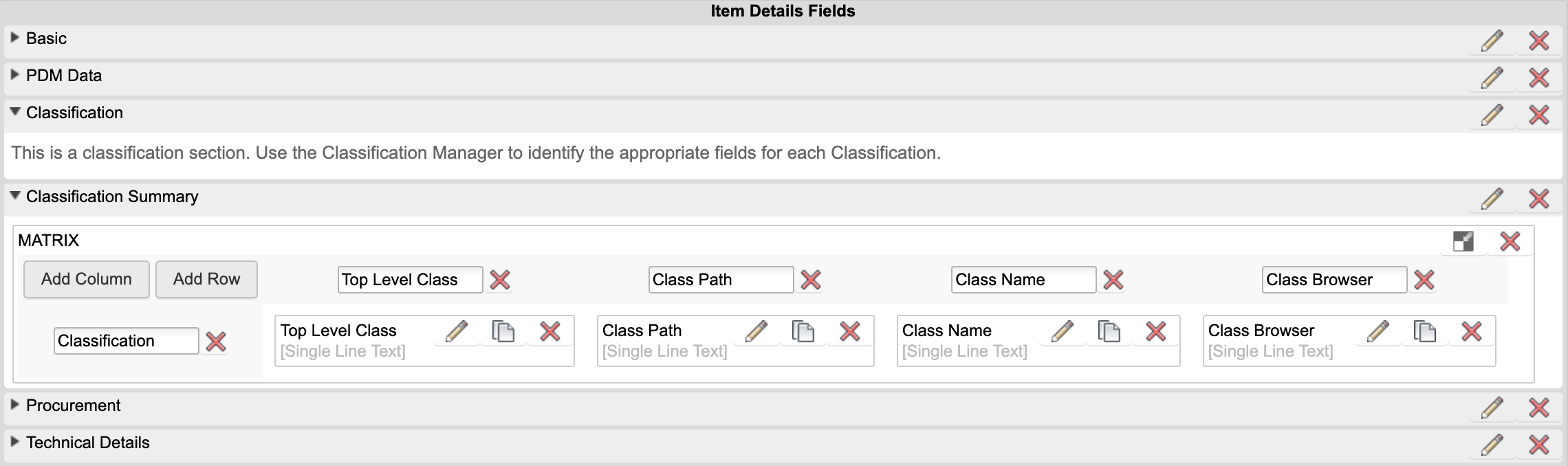
| Label | Field ID | Type | Details | Editable |
|---|---|---|---|---|
| DMS_ID | DMS_ID | Single Line Text | Field Length: 20; set visibility to Never | False |
| Top Level Class | TOP_LEVEL_CLASS | Single Line Text | Field Length : 200 | False |
| Class Path | CLASS_PATH | Single Line Text | Field Length : 1000 | False |
| Class Name | CLASS_NAME | Single Line Text | Field Length : 200 | False |
| Class Browser | CLASS_BROWSER | Single Line Text | Insert the computed field formula shown below | False |
CASE WHEN (CLASS_NAME is null) THEN '' ELSE '<a style="border: 1px solid #bec8d2;border-radius:3px;padding:4px 20px;color: #0a131c;font-weight:600;line-height:26px;text-align:center;text-decoration:none !important;white-space:nowrap;width:160px;" target="_blank" href="http://localhost:8080classes?wsId=57&dmsId='||DMS_ID||'">Find Similar Parts</a>' END
Note that this formula must contain the right workspace ID (..wsId=57..) to match the ID of workspace Items in your tenant (57 is valid for the default tenant).
Of course, the classification section also must be present in this workspace :-)
Scripts
The fields that were created just before must be updated by scripts every time a new record gets created or when it gets modified. Make sure that the following code is invoked at item creation and during item edit events.
In the standard tenants of mid 2023 and later, this should already be included in script Items onCreate onEdit.
if(item.DMS_ID !== dmsID) item.DMS_ID = dmsID;
setClassSummary();
function setClassSummary() {var rootClass = "";var classPath = "";var className = "";if(Object.keys(item.classification).length > 0) {var path = item.classificationSection.getClassificationPath();if(path.length > 0) { rootClass = path[0];className = path[path.length - 1];classPath = rootClass;if(path.length > 1) {for(var i = 1; i < path.length; i++) {classPath += ' / ' + path[i];}}}}if(item.TOP_LEVEL_CLASS !== rootClass) item.TOP_LEVEL_CLASS = rootClass;if(item.CLASS_PATH !== classPath) item.CLASS_PATH = classPath;if(item.CLASS_NAME !== className) item.CLASS_NAME = className;}
Access the Class Browser
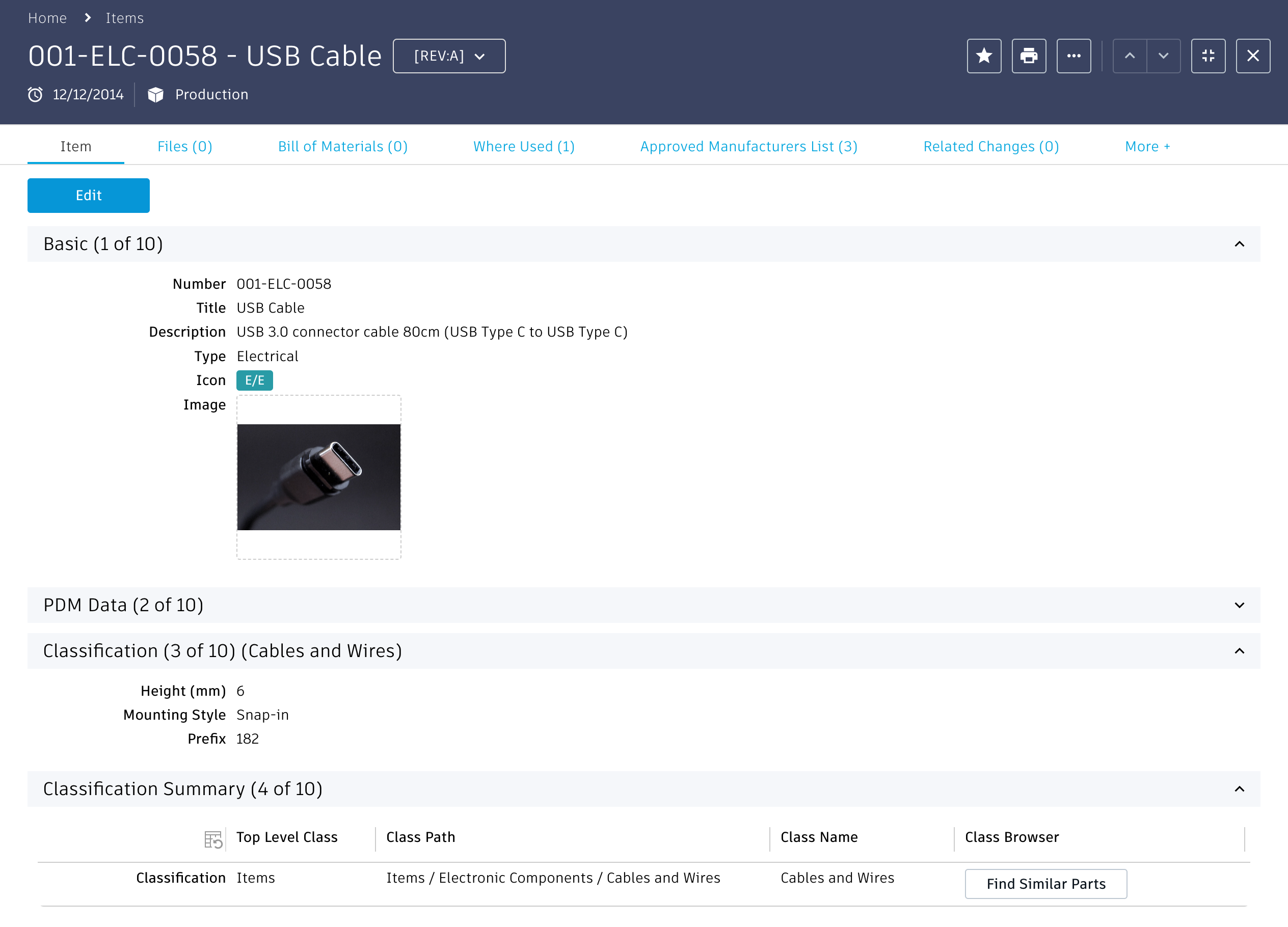
From now on, once an item gets classified, there will be a button Find Similar Parts in section Classification Summary to open the Class Browser in a new tab:
Class Browser Change Log
| 7. July 2023 | Enhancement | New default tenant now contains required fields of this extension to reduce implementation efforts and provide value for all users |